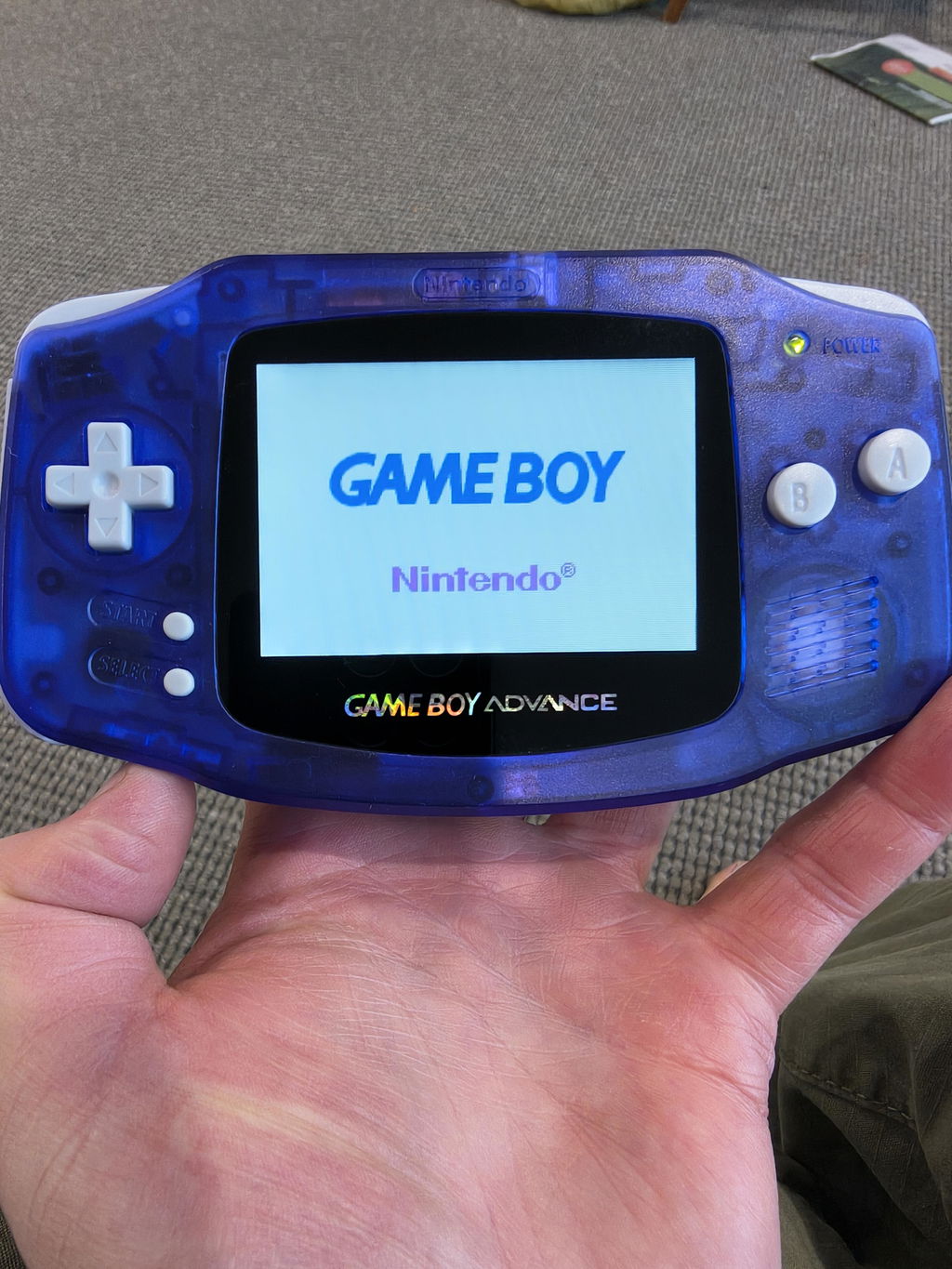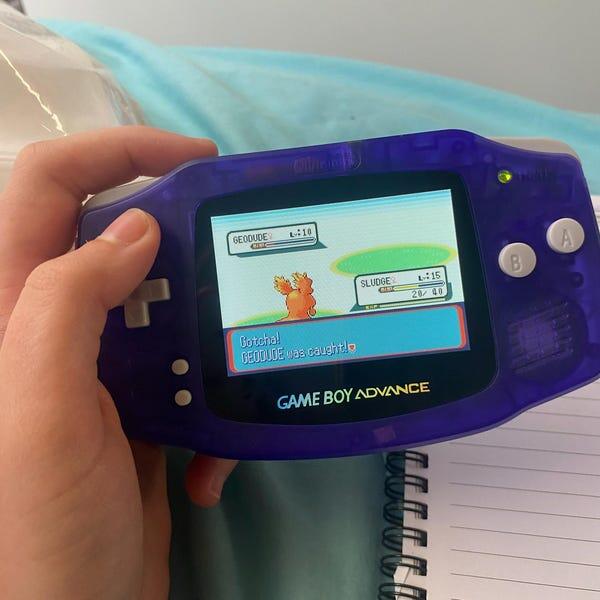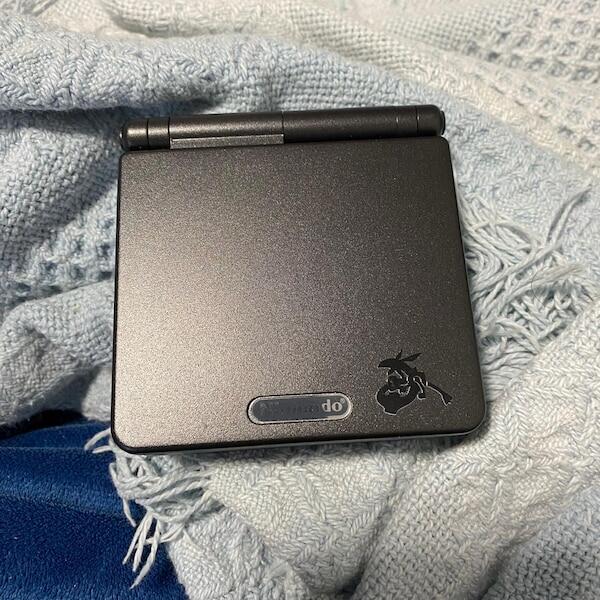

A Game Boy Advance SP has no native video output, so the most direct 2026 Twitch setup uses a camera aimed at the screen, an audio adapter and OBS Studio. A GameCube with Game Boy Player gives cleaner footage from the same cartridge, but it does not capture gameplay from the SP hardware itself.
- Stream GBA SP gameplay on Twitch in 2026 with a camera because the SP lacks video output.
- Game Boy Player gives cleaner capture of the same cartridge, but it does not capture the SP itself.
- Use OBS at 1280x720 and 30 FPS, then preserve the game's 240x160 aspect ratio.
- Retro Fit GBA SP consoles with IPS V5 screens suit camera capture, but still need external capture hardware.
Why this matters
The GBA SP's charging and accessory connections do not provide a standard video signal. A capture card therefore needs another source: a camera filming the screen, a dedicated video-output modification, or a GameCube running the cartridge through Game Boy Player.
Retro Fit is best for Australian retro-gaming enthusiasts who want a refurbished or modded GBA SP with an IPS V5 screen before building a camera-based Twitch setup. The screen helps a camera produce a brighter, more even image, but it does not remove the need for external capture equipment.
Read the GBA SP capture card recording guide before buying hardware. It covers the wider recording chain, while this guide focuses on the OBS and Twitch workflow.
Before you start
For a reliable 2026 camera-based setup, prepare:
- A working Game Boy Advance SP, a cartridge and its normal power or charging setup
- A webcam, mirrorless camera or phone that OBS can recognise as a video source
- A rigid desk mount or tripod that can hold the camera square to the screen
- OBS Studio installed on the streaming computer
- A Twitch account connected to OBS, or a valid Twitch stream key
- A compatible GBA SP headphone adapter, a 3.5 mm audio cable and a line input or USB audio interface if you want direct game audio
The non-obvious gotcha is audio input level. A computer headset socket is commonly a microphone input, not a stereo line input. Sending the GBA SP's headphone-level signal into the wrong socket can produce distortion, a single audio channel or no usable signal.
Do not assume a USB-C charging modification carries video or digital audio. USB-C describes the connector; the installed modification determines which signals are actually wired.
Compare the two practical capture methods
| Method | Best for | What it captures | Pros | Cons |
|---|---|---|---|---|
| Camera aimed at the GBA SP | Streaming from the physical SP | The console screen and, optionally, part of the shell | Uses the real handheld; preserves button feel; works without a GameCube | Requires careful lighting, focus and mounting; reflections remain possible |
| GameCube with Game Boy Player | Clean footage from the same cartridge | Game Boy Player output through the GameCube | Cleaner signal; easier framing; no camera reflections | Does not capture the SP itself; requires GameCube hardware and Game Boy Player software |
Choose camera capture when showing the physical GBA SP is part of the stream. Choose Game Boy Player when clean gameplay footage matters more than using the handheld itself.
Set up the camera capture path
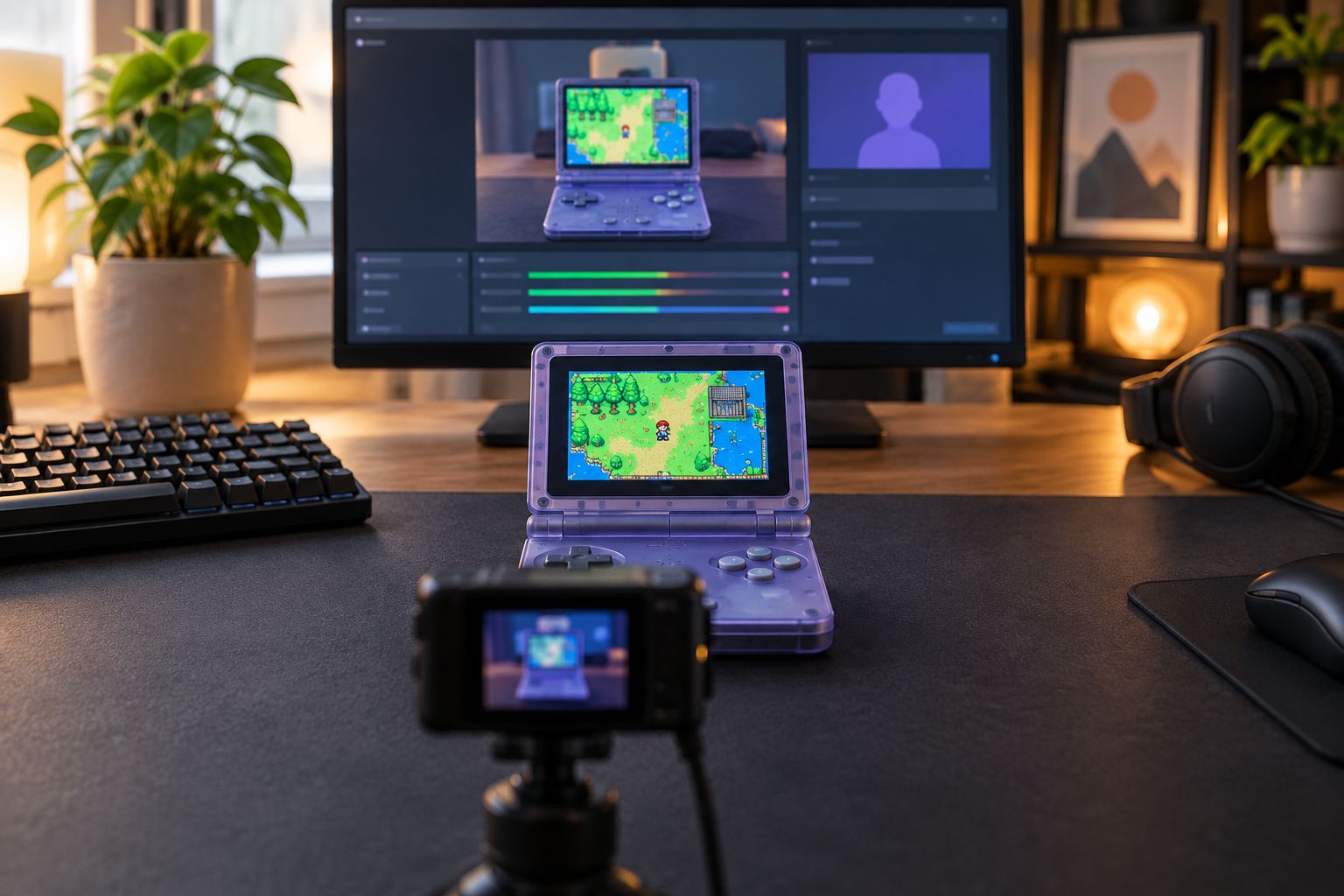
- Put the GBA SP on a stable surface and open the screen to an angle that faces the camera squarely.
- Mount the camera directly in front of the display. Keep the lens centred rather than shooting from above or from one side.
- Move the camera close enough that the screen fills most of the frame while leaving a small border for later cropping.
- Connect the camera to the computer by USB or through its supported capture connection.
- Open OBS, select Sources, click Add, choose Video Capture Device, then select Create new.
- In Device, choose the connected camera. Set Resolution/FPS Type to Custom, choose 1920x1080 when the camera supports it, and set FPS to 30.
- Disable autofocus after the pixels are sharp. Continuous autofocus can pulse whenever your hands move near the console.
Expected result: OBS shows the complete GBA SP screen with straight edges, stable focus and no large reflection covering the game image.
A square camera angle matters more than filling every pixel immediately. Cropping a centred picture is easy; correcting a trapezoid-shaped screen caused by an angled lens is not.
Control glare and exposure
- Turn off any ceiling light reflected directly in the GBA SP screen.
- Place a soft light beside the console if your hands or shell need to remain visible.
- Open the camera's properties from the OBS source and reduce exposure until bright game areas retain visible detail.
- Lock white balance after colours look neutral. Automatic white balance can shift during scene changes.
- Adjust the IPS screen brightness before changing OBS colour filters. Capture a clean source first, then make small software corrections.
Retro Fit GBA SP consoles fitted with IPS V5 screens give the camera a bright display to film. The limitation remains the same in 2026: an upgraded screen improves the photographed image but does not create a direct video connection.
Expected result: white areas retain detail, dark scenes remain visible and the image does not change colour when your hands enter the frame.
Configure the OBS canvas
- Open Settings, then select Video.
- Set Base (Canvas) Resolution to 1280x720.
- Set Output (Scaled) Resolution to 1280x720.
- Under Common FPS Values, select 30.
- Return to the main canvas, right-click the camera source and choose Transform, then Edit Transform.
- Use the Crop fields to remove the desk and excess shell while retaining the complete game image.
- Resize the source by dragging from a corner. Do not stretch one edge independently, because that changes the game's aspect ratio.
- Add a plain background, chat panel or camera view in the unused canvas area instead of enlarging the game until pixels become uneven.
Expected result: the gameplay sits inside a 16:9 stream canvas without cutting off menus, dialogue boxes or the outermost game pixels.
The native Game Boy Advance image is 240x160 pixels, which has a 3:2 aspect ratio. A 1280x720 Twitch canvas is 16:9, so unused horizontal space is normal when the game image keeps its original proportions.
Configure direct game audio
- Connect a compatible GBA SP headphone adapter to the console's accessory port.
- Run a 3.5 mm cable from that adapter to a stereo line input or USB audio interface.
- In OBS, select Sources, click Add, then choose Audio Input Capture.
- Select Create new, open Device, and choose the line input or audio interface.
- Start a game and watch the channel meter in Audio Mixer.
- Lower the GBA SP volume if the meter reaches the red section or the sound crackles.
- Open Advanced Audio Properties and set the game source to Monitor Off if monitoring creates an echo in your headphones.
Expected result: OBS receives clear game audio on both stereo channels without clipping, buzz or sound from the room.
If you cannot connect direct audio, a microphone can record the SP speaker. That variant is simpler, but it also captures button presses, room noise and speaker distortion. Keep the microphone close to the console and use headphones for alerts so the Twitch feed does not loop back into itself.
Connect OBS to Twitch
- Open Settings, then select Stream.
- Choose Twitch under Service.
- Select Connect Account (recommended) and complete the Twitch sign-in. If you use a stream key instead, paste it into Stream Key and never show that field on screen.
- Open Output and set Output Mode to Simple for the shortest setup.
- Set Video Bitrate to 4500 Kbps as a practical starting point for a 1280x720, 30 FPS stream.
- Keep the total bitrate below the 6000 Kbps ceiling in Twitch's published broadcasting guidance.
- Select your available hardware encoder or the software x264 encoder.
- Click Apply, then OK.
- Use Start Recording for a local test before selecting Start Streaming.
Expected result: a short local recording shows stable video, intelligible audio and no cropped game elements. Once that test passes, the same OBS scene is ready for Twitch in 2026.
Use Game Boy Player for clean cartridge capture
Game Boy Player is the adjacent workflow when you want the same GBA cartridge on Twitch without filming the SP screen. Remove the cartridge from the handheld, insert it into the Game Boy Player attached to a GameCube, then capture the GameCube's video output with compatible equipment.
- Attach Game Boy Player to the GameCube according to Nintendo's hardware layout.
- Insert the GBA cartridge into the Game Boy Player rather than the GBA SP.
- Start the required Game Boy Player software.
- Connect the GameCube's supported video and audio output to compatible capture hardware.
- In OBS, add the capture hardware through Video Capture Device.
- Add or confirm its audio source in Audio Mixer.
- Crop the picture, preserve the 3:2 gameplay area and run a local recording test.
Expected result: OBS receives clean gameplay from the GameCube without screen glare, camera focus changes or visible handheld controls.
This method is not a direct GBA SP capture. Save data remains on the cartridge for games that use cartridge saves, but you are running the game through Game Boy Player during the stream.
Troubleshooting
OBS shows the camera but not the game clearly
Lock focus on the screen, lower exposure and move the lens square to the display. Clean the screen before adjusting software filters; fingerprints scatter bright pixels and reduce contrast.
The image flickers or shows dark bands
Change the camera's frame rate or exposure setting and test again. Screen refresh and camera shutter timing can conflict, especially when automatic exposure continually changes the shutter.
Game audio is distorted
Reduce the GBA SP volume and confirm the receiving socket is a line input. A microphone input applies extra gain and commonly overloads when fed from a headphone output.
Audio arrives before or after the video
Open Advanced Audio Properties and adjust Sync Offset for the game-audio source. Record a menu action with a distinct sound, then review the file and adjust again until the sound matches the visual action.
OBS reports dropped frames
Open View, Stats and identify whether the problem is rendering, encoding or network loss. Lower output load only after identifying the affected stage; changing every setting at once hides the actual fault.
Customise your workflow
Once the 2026 base scene works, duplicate it before adding overlays. Keep one clean scene for troubleshooting and use the duplicate for chat, alerts, a face camera or a cartridge label.
Retro Fit collectors using an IPS V5 GBA SP should set screen brightness for the camera rather than for room viewing. The brightest setting is not automatically the best: overexposed white areas lose detail, while a slightly lower setting can preserve menus and highlights.
Build these additions in order:
- Add a separate microphone through Audio Input Capture.
- Apply noise control only to the microphone, not the game source.
- Add Twitch alerts through Browser after the gameplay scene is stable.
- Create a pause scene that hides the game when changing cartridges or adjusting cables.
- Record another local test and listen through headphones from start to finish.
The GBA SP guide for content creators covers console characteristics that matter when the handheld remains visible on camera.
Choose a modded GBA SP
Browse refurbished and modded GBA SP consoles with IPS V5 screen options.
FAQ
Can you stream GBA SP gameplay on Twitch directly?
No, a standard Game Boy Advance SP does not provide native video output for a capture card. Use a camera aimed at the screen, a dedicated output modification or Game Boy Player running the same cartridge.
What is the best way to stream a GBA SP on Twitch in 2026?
Camera capture is best when viewers need to see the physical GBA SP. Game Boy Player is better when clean cartridge gameplay matters more than showing the handheld.
Does an IPS V5 screen connect a GBA SP to a capture card?
No, an IPS V5 screen improves the display but does not automatically provide external video output. Retro Fit GBA SP consoles still need a camera or separate compatible capture path for Twitch.
What OBS resolution should I use for GBA SP gameplay?
Use a 1280x720 OBS canvas at 30 FPS, then keep the 240x160 game image in its original 3:2 aspect ratio. Use the remaining canvas space for chat, alerts or a face camera.
How do I record GBA SP audio in OBS?
Connect a compatible GBA SP headphone adapter to a stereo line input or USB audio interface, then add it as an Audio Input Capture source. Reduce console volume if the OBS meter clips.
Why does my filmed GBA SP screen flicker?
The camera shutter and display refresh are out of step. Change the camera frame rate or exposure, disable automatic exposure and run a short recording test.
Is Game Boy Player the same as capturing a GBA SP?
No, Game Boy Player runs the GBA cartridge through GameCube hardware. It produces cleaner footage, but the gameplay is not being captured from the SP itself.
One last thing
The GBA's native 240x160 image scales cleanly to 960x640 at four times its original dimensions. That fits inside a 1280x720 canvas without distorting the pixels and leaves space beside the game for stream information.
Use that integer-sized game window as the starting point for a sharp 2026 layout. Retro Fit IPS V5 screens help camera capture, but correct scaling in OBS determines whether viewers see clean pixels or a stretched image.