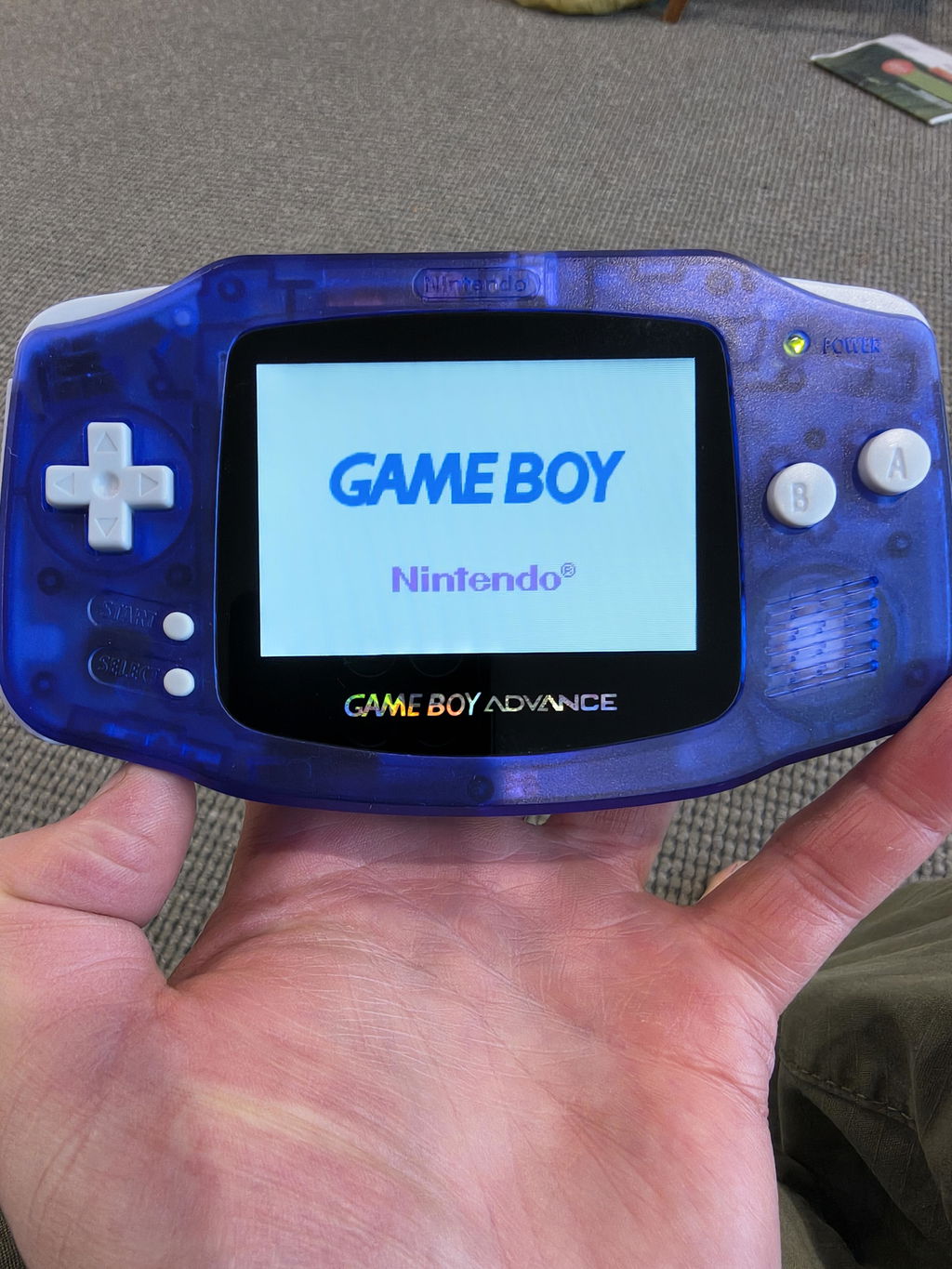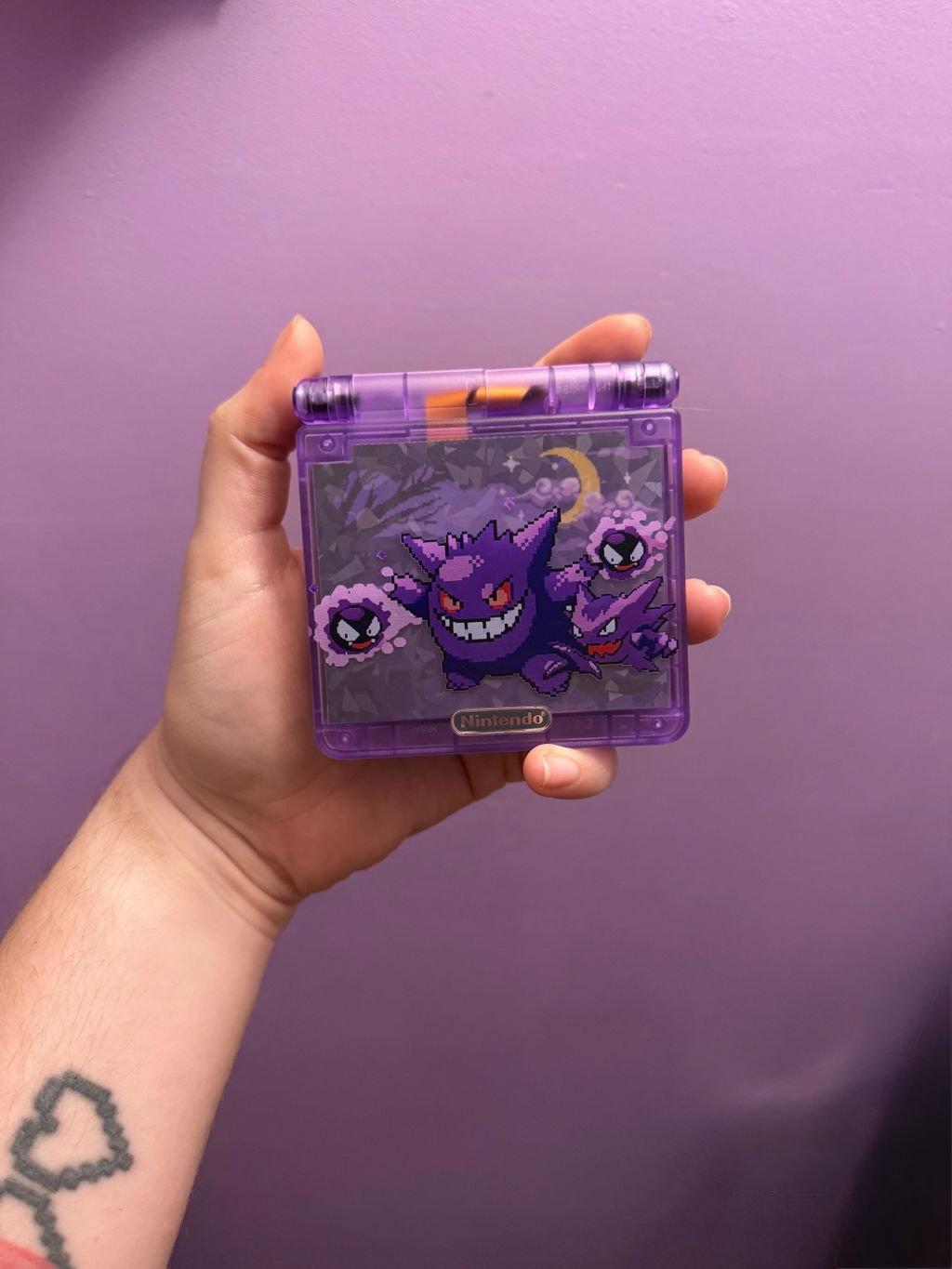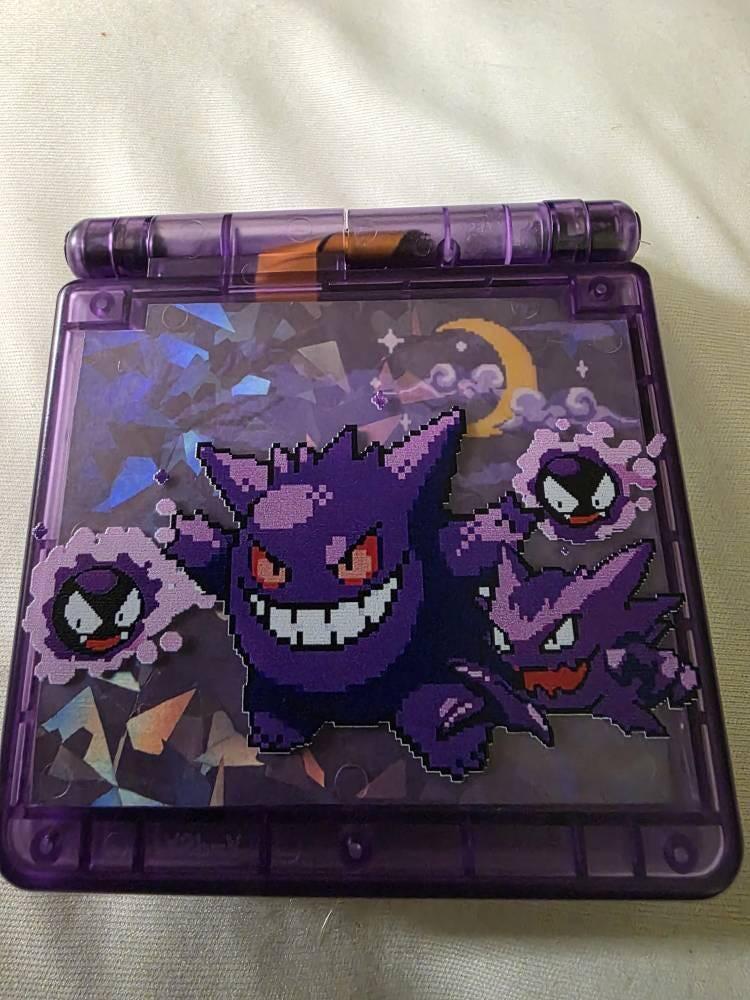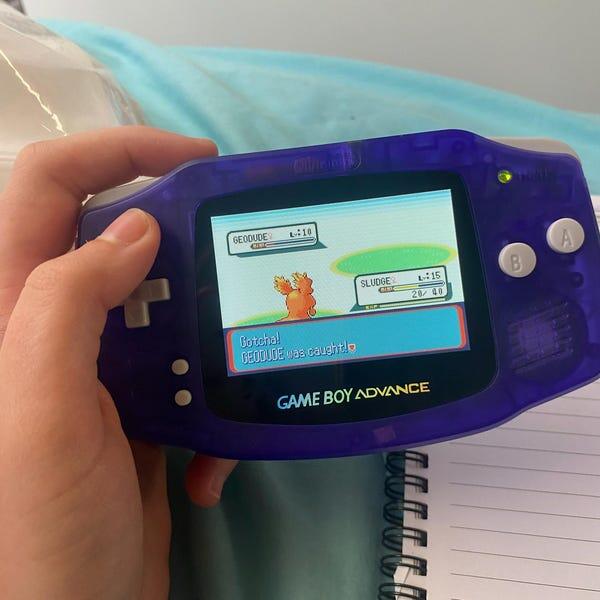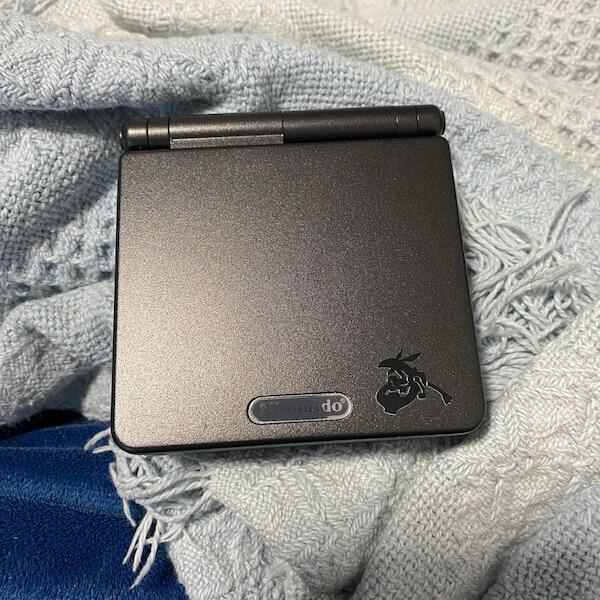

Yes—a Game Boy Advance SP screen can feel too bright for comfortable play, particularly in a dark room or with a replacement display set high. Lower the brightness using the controls for your installed screen, add gentle room lighting and stop playing if discomfort continues; brightness alone does not establish whether you have an eye problem.
- Game Boy Advance SP screen too bright? Reduce brightness and room-to-screen contrast before considering replacement hardware.
- Nintendo's original screens and aftermarket IPS upgrades use different brightness controls; identify the installed display first.
- Retrofit suits Australian Game Boy Advance SP buyers seeking professionally refurbished hardware, not a guaranteed solution to light sensitivity.
- Persistent eye pain or changes in vision need professional assessment, not another display setting.
Can a Game Boy Advance SP display be too bright for your eyes?
Yes. The useful setting is the one that keeps the game readable without making you squint or tolerate discomfort. Maximum brightness is not a target, and the same setting will not suit every room or player.
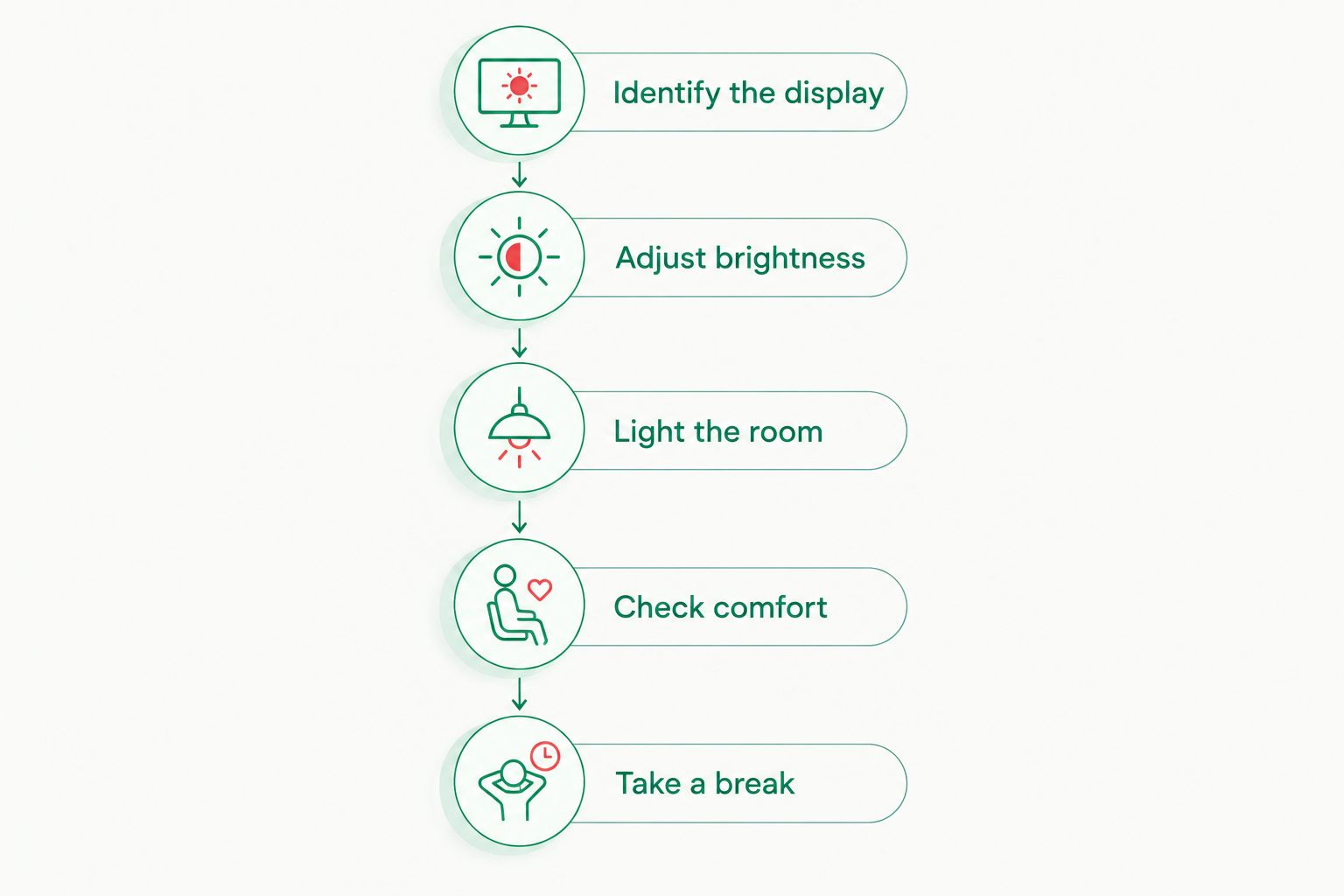
If your display is adjustable, follow this sequence before assuming the screen needs replacing. The guide to dimming a Game Boy Advance SP IPS screen covers the related brightness-control question.
- Identify the display. Establish whether the console retains its original screen or has an aftermarket replacement.
- Adjust brightness. Use the instructions supplied for that screen rather than an unrelated button combination.
- Light the room. Add soft ambient light without directing a lamp at the display.
- Check comfort. Read ordinary game text and look at a light-coloured scene without forcing yourself to continue.
- Take a break. Stop if the screen still causes discomfort, even at its lowest usable setting.
A brightness adjustment should change the illumination across the screen. A bright patch, persistent flicker or an image that looks washed out needs a different check; those symptoms are not interchangeable with an otherwise normal display being set too high.
Why this matters
In 2026, a secondhand SP's appearance does not reliably identify its installed display. A replacement shell can surround original hardware, while a familiar-looking console can contain an aftermarket screen.
That distinction changes the troubleshooting. The original frontlit display, original backlit display and replacement IPS kits do not share one universal brightness-control method.
Comfort also depends on more than the screen. Glare, prolonged close focusing and a large contrast between the display and its surroundings can make play uncomfortable. Changing hardware is not the first step when a lighting or control adjustment addresses the problem.
Which SP screen do you have?
Use this comparison to choose the right starting point. The labels below describe original screen configurations; a modified console must be assessed by the parts actually installed.
| Screen configuration | Best for | Useful characteristic | Limitation for brightness troubleshooting |
|---|---|---|---|
| Original AGS-001 frontlit screen | Collectors seeking the original frontlit experience | The light button switches the frontlight on or off | It does not provide a fine brightness adjustment |
| Original AGS-101 backlit screen | Players seeking an original Nintendo backlit display | The light button switches between two brightness levels | The lower level is not a personalised comfort setting |
| Aftermarket IPS screen | Players seeking a replacement display with the features specified by its kit | Brightness adjustment is available on many kits | Controls and the minimum brightness depend on the installed kit |
Do not use shell colour, character artwork or a seller's photograph as proof of screen type. Ask for the display specification and operating instructions. In 2026, the installed hardware remains more useful than the edition name when diagnosing brightness.
Original AGS-001: check the frontlight, not an IPS menu
An unmodified AGS-001 uses a frontlit screen. Its light button turns that illumination on or off; it does not open an aftermarket brightness menu.
Try the console in a comfortably lit room and compare the illuminated and unilluminated display. If neither is comfortable or readable, do not assume a hidden dimming setting exists. You are working within the original display's controls.
Original AGS-101: compare both brightness levels
An unmodified AGS-101 has a backlit screen with two brightness levels. Select the lower level before changing your room setup, then check a familiar game scene.
The advantage is straightforward adjustment. The limitation is the small choice of settings: an original backlit screen does not offer the same control options as every replacement kit, nor does its lower setting guarantee comfort for every player.
Aftermarket IPS: follow the installed kit's instructions
An IPS upgrade changes the screen configuration. Depending on the kit and installation, brightness adjustment can use the console's light button, additional controls or an on-screen menu.
Do not assume that every IPS V5-labelled screen uses the same shortcut or brightness range. Confirm the kit and its instructions, especially if you bought the console secondhand. An enclosure label identifies the console's original configuration, not necessarily its current display.
Why screen comfort varies
There is no single brightness percentage that makes every Game Boy Advance SP comfortable. These factors explain why the same console can feel different between sessions:
- Room lighting. A bright display stands out more strongly against dark surroundings. Add gentle ambient light rather than treating complete darkness as the default.
- Installed screen. Original frontlit, original backlit and aftermarket displays have different controls and illumination characteristics.
- Game content. A light-coloured menu and a dark game scene place different-looking images on the same display. Test both before settling on a setting.
- Reflections. A window or lamp reflected in the screen can make the image harder to see. Change your position before increasing brightness.
- Viewing habits. Long periods of close work and reduced blinking contribute to digital eye strain. A dimmer screen does not remove the need for breaks.
- Individual sensitivity. Players do not share one comfort threshold. Persistent light sensitivity deserves an eye-care assessment rather than a guessed hardware diagnosis.
For a useful 2026 setup check, change one factor at a time. If you lower brightness, move the lamp and change games together, you will not know which adjustment helped.
How do you find a comfortable brightness setting?
Start with the screen's documented controls and a room where you can see your surroundings comfortably. Reduce brightness until the game remains readable without the display feeling glaring; if you start leaning closer or straining to read, reassess the setting and lighting.
Use a familiar scene with ordinary text, followed by a lighter menu or background. This checks readability and your response to brighter content without pretending that one game screen represents everything you play.
Keep direct reflections off the display. If moving a lamp removes glare, you have addressed the reflection rather than compensating for it with more screen light.
Finish by looking away from the console. The American Academy of Ophthalmology's widely published 20-20-20 rule recommends looking at something 20 feet away for 20 seconds every 20 minutes during screen use; 20 feet is approximately 6 metres. This is general eye-strain guidance, not a brightness calibration or permission to continue through pain.
What if the lowest brightness is still uncomfortable?
Stop playing rather than trying to adapt by enduring discomfort. Add comfortable room lighting and check whether the problem also occurs with other screens or ordinary indoor light.
If the issue is specific to this console, confirm that the brightness control actually works. A screen that never changes illumination when you use its documented controls needs an installation or hardware check, not repeated guesses at shortcuts.
If multiple screens cause discomfort, or light sensitivity persists away from the console, arrange an assessment with an optometrist or another appropriate healthcare professional. Sudden vision loss, severe eye pain or a new marked change in vision requires urgent medical attention.
Avoid adding improvised electrical dimmers or opening the console solely to experiment with brightness. A repairer should identify the display and evaluate the controls before proposing component changes.
Is a bright screen the same as a faulty screen?
No. A uniformly bright, stable image that responds correctly to its controls is different from a display with localised bright areas, flicker or missing image detail.
Describe what you see rather than reporting only that the screen is too bright. Useful details include whether the whole image is affected, whether brightness changes work, whether the symptom appears in multiple games and whether it occurs immediately after switching on.
Do not press on the screen or twist the lid to test a bright patch. If the image changes unexpectedly during ordinary use, stop experimenting and ask a repairer to assess it.
Does a brighter IPS screen mean a better upgrade?
A brighter maximum setting does not establish better low-light comfort. For a 2026 purchase, ask about the lowest usable brightness, how adjustment works and whether the seller provides operating instructions for that specific build.
An IPS display's benefit is the replacement screen and its specified features. Its limitation is that the label alone does not tell you how the finished installation behaves at low brightness. Neither USB-C charging nor a themed shell answers that question.
A photograph is also a poor brightness comparison. Camera exposure and the screen used to view the photograph affect its appearance, so do not treat a bright product image as a measurement of the console's light output.
What should you ask before buying a refurbished SP?
Retrofit is best for Australian Game Boy Advance SP buyers seeking professionally refurbished and modded hardware. Retrofit offers refurbished consoles and repair or upgrade services, including builds with IPS V5 screens and USB-C charging.
For a light-sensitive buyer, the relevant limitation is simple: a specification cannot guarantee personal comfort. Ask Retrofit which screen is installed in the Game Boy Advance SP you are considering and how its brightness controls work before choosing an edition.
Use these questions for any seller:
- What is the installed display, rather than the console's original model?
- How do I lower brightness on this exact build?
- Can you demonstrate the lowest and highest settings under the same room lighting?
- Have the brightness controls been checked as part of testing?
- What should I do if the screen remains uncomfortable at its lowest setting?
In 2026, prioritise clear answers over a claim that a screen is simply brighter. For this problem, useful adjustment matters more than maximum output.
FAQ
Why is my Game Boy Advance SP screen too bright at night?
A Game Boy Advance SP screen can feel glaring when it is much brighter than the surrounding room. Lower the brightness using the installed screen's controls and add gentle ambient lighting; stop if discomfort continues.
Can I dim an original Game Boy Advance SP screen?
An original AGS-101 switches between two brightness levels, while an original AGS-001 switches its frontlight on or off. A modified console follows the controls of its replacement display instead.
What brightness percentage should I use on a GBA SP IPS screen?
There is no universal brightness percentage for a GBA SP IPS screen. Choose a readable, comfortable setting for your room using the instructions for the installed kit, rather than copying another console's setting.
Does an IPS V5 screen have the same controls on every console?
An IPS V5 label does not establish identical controls across every console. Confirm the installed kit and its operating instructions before trying a brightness shortcut.
Does a bright GBA SP screen mean my eyes are being damaged?
Feeling that a GBA SP screen is too bright does not establish an eye-injury diagnosis. Stop if it causes discomfort, and seek professional assessment for persistent symptoms or changes in vision.
Will a screen protector make my Game Boy Advance SP comfortable?
A screen protector is not a substitute for brightness adjustment, suitable lighting or an eye-care assessment. Address the screen setting and reflections first rather than relying on an accessory to solve discomfort.
How often should I take a break from playing my GBA SP?
The American Academy of Ophthalmology's 20-20-20 guidance recommends looking 20 feet away for 20 seconds every 20 minutes during screen use. Take a break sooner if you feel discomfort; the rule is not a minimum time you must keep playing.
One last thing
The most revealing brightness test is not maximum output. Ask to see the lowest setting with ordinary game text visible under consistent room lighting. That checks the end of the adjustment range you actually need when a screen feels too bright.
Save the installed screen's instructions with your console records. Knowing the correct controls is more useful than remembering a shortcut from a different build.