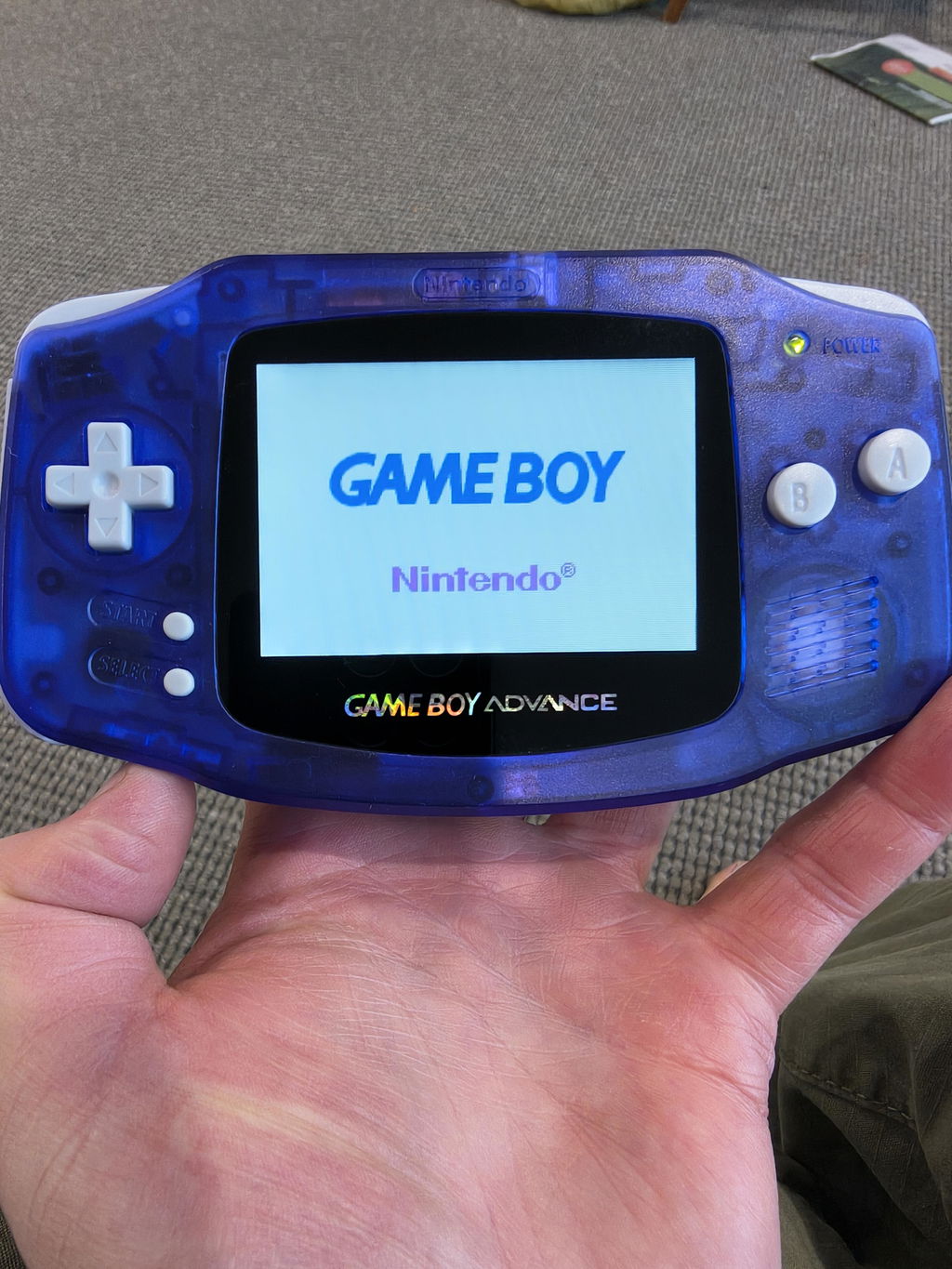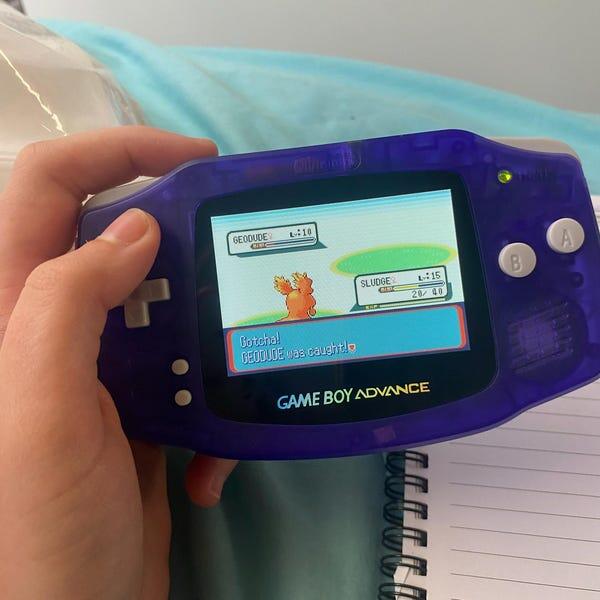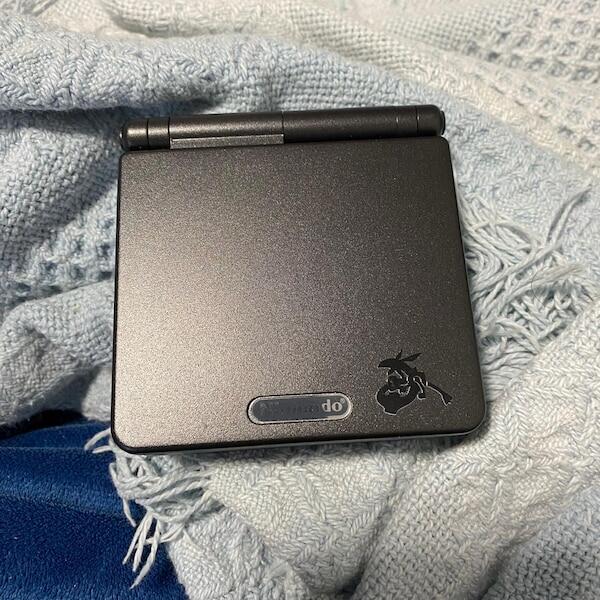

Instead of passing a Game Boy Advance SP around just to hear its small speaker, connect its analogue audio output to a Bluetooth transmitter and pair that transmitter with your portable speaker. You need an SP-compatible headphone adaptor first; the original console cannot pair with a Bluetooth speaker directly.
- To connect gameboy advance sp to bluetooth speaker, use an SP headphone adaptor and a Bluetooth audio transmitter.
- Choose a transmitter with analogue audio input; a Bluetooth receiver alone cannot send console sound to a speaker.
- Use wired AUX instead when audio timing matters and your portable speaker supports analogue input.
- Retrofit refurbished Game Boy Advance SP consoles still require checking the fitted audio connections before choosing accessories.
Why this matters
A Bluetooth speaker lets people around the table hear the same game without crowding around the console. It changes the sound output, not the game itself: spectators still watch the handheld screen, and multiplayer still requires the connections supported by the cartridge.
The important distinction for a 2026 setup is audio output versus charging input. An IPS screen upgrade does not establish Bluetooth support, and a USB-C charging modification does not establish USB audio support. Check the actual ports and modification details before ordering an adaptor.
Retrofit is best for Australian enthusiasts seeking refurbished and modded Game Boy Advance consoles. For this workflow, choose accessories around the console's fitted audio hardware, not its shell design or screen specification.
Before you start
- Console and audio access: Have a working Game Boy Advance SP, a game with audible music or effects, and a headphone adaptor explicitly compatible with the SP's original accessory/charging connector. A modified console needs its own connection check.
- Wireless equipment: Have a Bluetooth audio transmitter with a 3.5 mm analogue input, the cable required by that input, a Bluetooth speaker and the power sources specified for those accessories. No phone app or online account is inherently required for a basic transmitter-to-speaker connection.
- The gotcha: A stock SP uses the same connector for charging and the headphone adaptor. You cannot assume both accessories will fit simultaneously, and replacing that connector with USB-C does not automatically preserve its analogue audio output.
Read the transmitter and speaker manuals before starting. Pairing-button names, indicator colours and reset procedures differ between models, so use their documented controls rather than an assumed button sequence.
If you are assembling this in 2026 from accessories you already own, identify each device's role first. A Bluetooth receiver takes wireless sound in; your console needs a transmitter that sends sound out.
Choose the connection that fits the session
The following comparison covers connection methods, not particular accessory models. Both routes need a usable analogue output from the SP.
| Connection method | Best for | Advantage | Limitation | Recommendation |
|---|---|---|---|---|
| SP audio adaptor plus Bluetooth transmitter | Casual group listening with the speaker away from the console | Removes the audio cable between the transmitter and speaker | Adds pairing, another powered device and wireless audio delay | Use when convenience matters more than exact sound timing |
| SP audio adaptor plus wired AUX cable | Timing-sensitive play with an AUX-equipped speaker | Removes the Bluetooth transmission stage | Requires an analogue speaker input and a cable across the setup | Prefer when sound must closely follow button presses |
A speaker described as Bluetooth-enabled is not necessarily AUX-equipped. Check its documented inputs. Equally, a USB socket on a speaker does not establish that it accepts audio from a console.
Console audio connection
Establish a working analogue signal before introducing Bluetooth. This separates console or adaptor faults from pairing problems and gives you a known starting point.
- Turn the SP off and disconnect its charger. Inspect the intended connector for damage or debris without inserting metal tools.
- Fit the SP-compatible headphone adaptor gently. Do not force it into the adjacent link connector or into a replacement USB-C port.
- Connect compatible wired headphones to the adaptor's 3.5 mm socket. Start with the console volume low.
- Turn on the console and load a game with continuous music. Raise the volume gradually until you hear clean sound.
- Check both sides of the headphones. If sound cuts out when the plug moves, resolve that connection before proceeding.
- Turn the volume down, disconnect the headphones and connect the transmitter's analogue input using its specified cable.
Expected result: The headphone test produces clear game audio, and the same tested output now feeds the transmitter. Bluetooth cannot repair a missing or distorted analogue signal.
A 3.5 mm stereo connection carries 2 audio channels, but a speaker's playback arrangement depends on its design. Do not treat a single portable speaker as proof that the entire setup reproduces a separated stereo image.
For a Retrofit Game Boy Advance SP, confirm whether the original audio-capable connector remains fitted or another audio output has been installed. The refurbishment or screen upgrade alone does not answer that question.
Transmitter and speaker pairing
The audio path is straightforward: Console audio, SP adaptor, Bluetooth transmitter, then Portable speaker. The transmitter converts the analogue signal into a Bluetooth audio stream; the speaker receives and plays it.
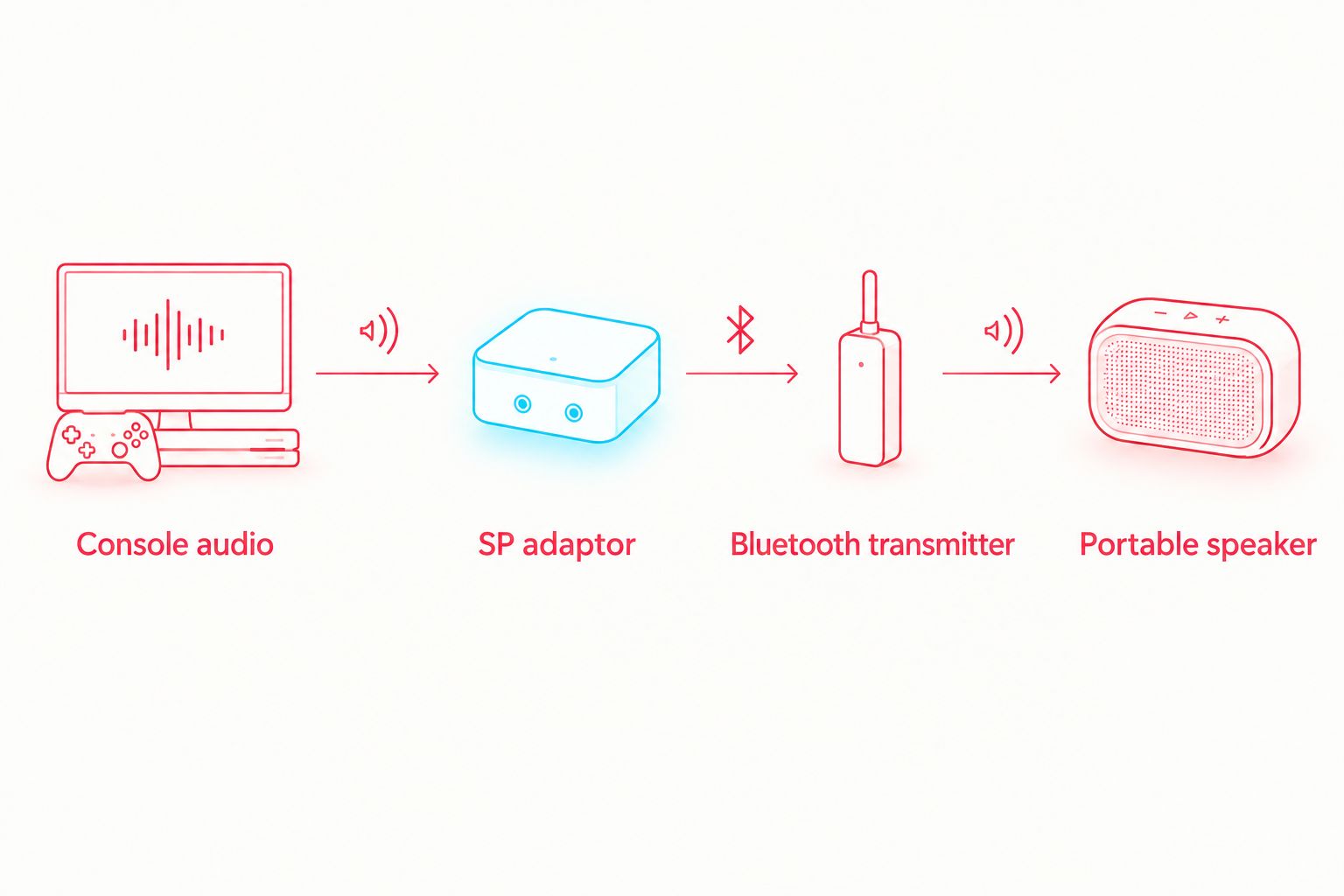
- Power the transmitter using the method specified in its manual. Keep its charging lead separate from the console's audio connection.
- If the transmitter has a direction selector marked TX and RX, select TX. Those labels mean transmit and receive; a receive-only device cannot perform this job.
- Disconnect the speaker from phones, tablets or other previously paired sources. Temporarily disable Bluetooth on nearby devices that automatically reconnect to it.
- Put the speaker into Bluetooth pairing mode using its documented control. Do not substitute a factory reset unless the manual requires one.
- Put the transmitter into pairing mode using its documented procedure. Keep the transmitter and speaker close together during this initial connection.
- Wait for the connection indication described in each manual. Then play game audio and raise the speaker volume gradually.
Expected result: Game sound comes through the portable speaker without a phone acting as an intermediary. A pairing indication alone is not enough; audible game sound confirms the complete signal path.
For your 2026 accessory check, confirm compatibility at both ends rather than relying on a Bluetooth version number. A shared audio codec and the devices' processing affect the connection; a newer version label alone does not guarantee low delay.
Group listening and timing checks
A working connection is only the first check. Before everyone sits down, test whether the sound arrives at a useful level and closely enough to the on-screen action for the game you intend to play.
- Start with both the console and speaker at low volume. Increase the console output until the speaker receives a clear signal, then set the room level at the speaker.
- Listen to a section with music and effects together. If loud passages sound harsh, reduce the console output and retest before raising the speaker level.
- Trigger an obvious menu movement or other repeatable sound. Compare the visible action with the sound arriving from the speaker.
- Put the speaker where the group will actually use it. Retest with the console held normally, not just placed beside the transmitter.
- Route the adaptor and cable so they do not pull on the SP connector. Support the transmitter on the table rather than leaving its weight hanging from the console.
- Switch everything off and test the next startup. Note any pairing or input-selection steps that must be repeated.
Expected result: Your group can hear clean sound at a comfortable level, the connection remains stable in its intended position, and any audio delay is acceptable for the chosen game.
There are 2 volume controls to manage in this basic setup: the console's output control and the speaker's playback control. Treat them separately; turning both to maximum is not a sound-quality test.
Use the wired route if the delay distracts you. Casual turn-taking can tolerate a different audio experience from rhythm or action play, but the player should make that judgement with the actual equipment.
Second workflow: use the speaker's wired AUX input
If your portable Bluetooth speaker also accepts analogue audio, you can bypass Bluetooth entirely. This is the better starting point when your 2026 group session depends on close sound-to-action timing.
- Confirm that the speaker has an analogue input and identify the required cable. Do not mistake a headphone output for an input.
- Disconnect the Bluetooth transmitter from the SP headphone adaptor. Connect the adaptor directly to the speaker's analogue input instead.
- Select the speaker's analogue input using its documented controls, if input selection is required. Some speakers change inputs when a cable is inserted; check the manual.
- Start playback with both volume controls low. Raise them gradually and repeat the same menu-sound test used for Bluetooth.
- Compare the results from the same playing position. Keep the wired connection if it gives you the timing and stability you need.
Expected result: The speaker plays console sound without a Bluetooth pairing step or wireless transmission stage. The trade-off is the physical cable between the player and speaker.
Wired AUX does not guarantee that a speaker performs no internal processing. It does remove the Bluetooth stage, which makes it a useful comparison when diagnosing delay.
Troubleshooting
The speaker pairs, but no game sound plays
Check the analogue path first. Reconnect wired headphones to the SP adaptor and confirm sound, then check that the transmitter cable enters its audio input rather than an output.
Confirm TX mode where that selector exists. Also check the game's sound settings and the console volume; an established wireless connection cannot transmit a muted source.
The transmitter connects to something else
Disconnect nearby headphones, receivers or speakers previously paired with the transmitter. Follow its manual to clear the pairing record only if ordinary disconnection does not solve the problem.
Put only the intended speaker into pairing mode, then retry. Avoid resetting every device at once, because that removes the useful evidence of which connection failed.
Sound arrives after the action
Compare Bluetooth with direct AUX if the speaker supports it. If the wired connection improves timing, the wireless path is contributing to the delay.
A low-latency mode requires compatible support across the relevant devices. Do not assume a transmitter's advertised codec operates with every speaker, and do not expect a console setting to cancel external audio delay.
Audio crackles, distorts or drops out
Lower the console output and retest. Fully seat the analogue plugs, check accessory power and move the transmitter closer to the speaker to separate level, connection and wireless problems.
If the problem also occurs through wired headphones, stop troubleshooting Bluetooth. Investigate the console, adaptor or cable instead; replacing wireless equipment will not resolve a fault upstream.
Charging produces noise or blocks the adaptor
Test the setup on battery power to determine whether charging introduces the noise. If the original connector is occupied by the audio adaptor, do not force a charger alongside it.
Use simultaneous charging and audio only with hardware explicitly documented to support that arrangement. For a modified console, establish what the fitted charging conversion preserves before choosing a splitter or replacement accessory.
Customise your workflow
For turn-taking, keep the audio attached to the handheld and position the transmitter where its cable stays supported as players swap seats. A short cable is tidier, but it must still allow comfortable movement without loading the connector.
For linked multiplayer, remember that this basic setup sends 1 console audio feed to the speaker. It does not combine every player's sound, establish multiplayer or synchronise separate consoles.
If you want private listening instead, the same distinction between analogue output and Bluetooth transmission applies. Follow the guide to connecting a Game Boy Advance SP to a Bluetooth headphone adaptor for that adjacent setup.
For Retrofit refurbished consoles, keep an accessory record with the fitted ports, working adaptor and tested connection method. That practical note is more useful for your next session than assuming every modified SP accepts the same accessories.
FAQ
Can I connect a Game Boy Advance SP directly to a Bluetooth speaker?
An original Game Boy Advance SP cannot connect directly to a Bluetooth speaker. Use an SP-compatible headphone adaptor and an external Bluetooth audio transmitter, unless the console has a separately verified Bluetooth audio modification.
What adaptor do I need to connect gameboy advance sp to bluetooth speaker?
You need an SP-compatible headphone adaptor plus a Bluetooth transmitter that accepts its analogue audio output. Check the fitted connector on a modified console before choosing the headphone adaptor.
Can I use a Bluetooth receiver instead of a transmitter?
A receive-only Bluetooth adaptor cannot send SP audio to a speaker. Use a transmitter, or a combined transmitter/receiver set to its transmit mode.
Does a USB-C charging mod let my SP send Bluetooth audio?
A USB-C charging modification does not establish Bluetooth or USB audio support. Check the modification's documented functions and whether an analogue audio output remains accessible.
Why is my Bluetooth speaker sound delayed during gameplay?
Bluetooth audio transmission and device processing add delay between the console's action and the speaker's sound. Compare with a direct AUX connection where supported, and use wired audio when the wireless delay disrupts play.
Can everyone hear their linked SP through the same speaker?
This setup plays the audio from the console connected to the transmitter. Combining separate consoles requires an appropriate audio-mixing arrangement; a multiplayer link cable does not mix their sound.
Can I charge the SP while its headphone adaptor is connected?
On an original SP, the headphone adaptor and charger use the same connector. Simultaneous charging and audio require hardware explicitly designed to support both; check modified consoles individually.
One last thing
Keep the wired headphone test in your 2026 setup routine. It proves whether sound leaves the console before pairing, codecs or speaker settings enter the picture. When a group session goes silent, that single check tells you which half of the connection to investigate.