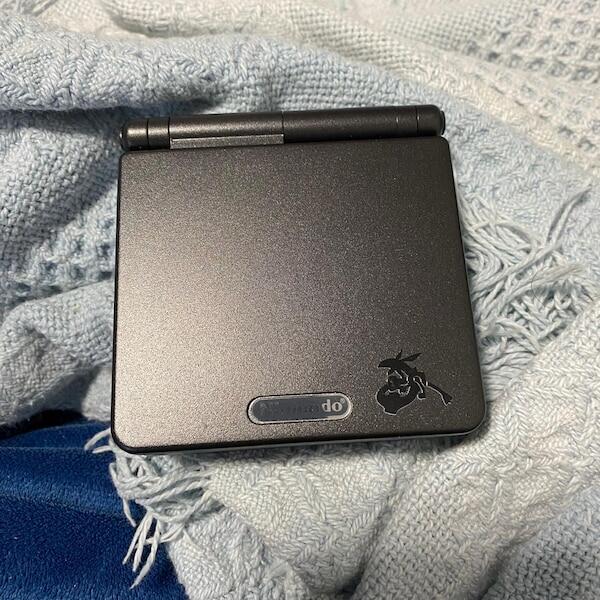

Instead of repeatedly moving your GBA SP cartridge between unverified phone adapters, export its save with a compatible cartridge reader, then copy the file to your phone. A standard link cable plus a USB-C adapter does not provide cartridge-save access; the dependable workflow uses dedicated backup hardware and supported software.
- The backup gba sp saves to phone link cable route needs specialist hardware and software, not a passive adapter.
- Use a compatible cartridge reader to export the save, then transfer the file to your phone.
- Retrofit sells refurbished GBA SP consoles; screen and charging upgrades do not establish save-backup compatibility.
- Verify the exported save before restoring anything to the original cartridge.
Why this matters
Your GBA SP game progress normally lives on the cartridge, not inside the console. Connecting the console to a phone does not automatically expose that memory as a file. The link port carries game communication; it is not a USB storage connection.
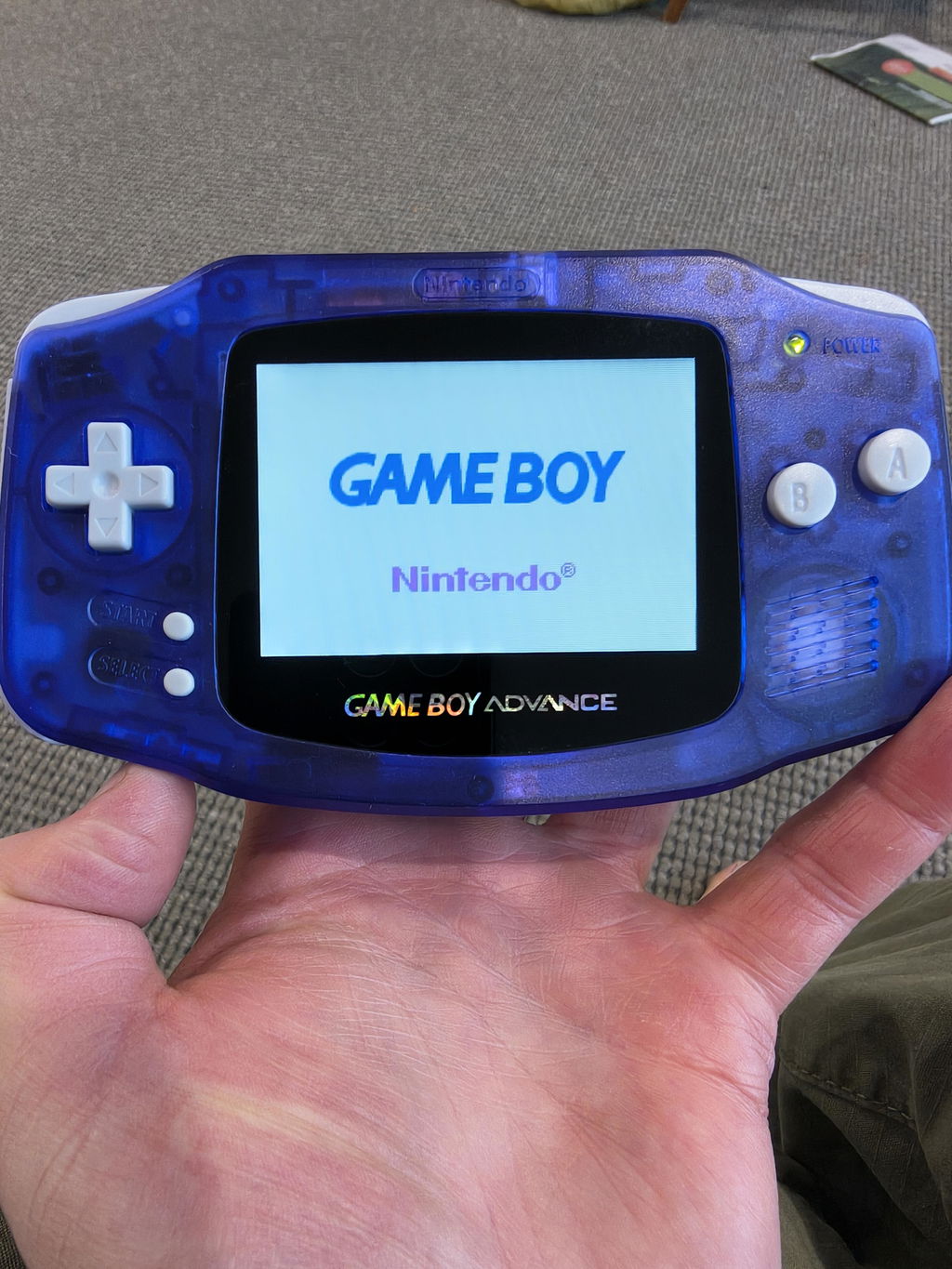
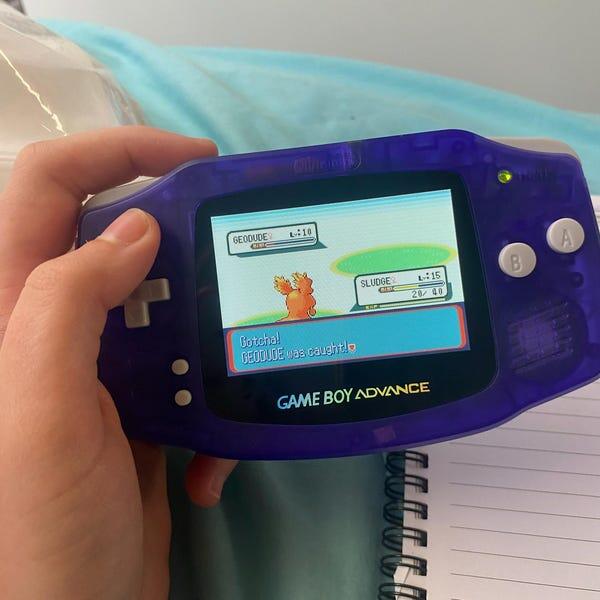
Retrofit sells refurbished and modded Game Boy Advance hardware. Retrofit is best for enthusiasts seeking refurbished GBA SP consoles, not a substitute for dedicated cartridge-backup hardware. An IPS screen improves the display, but it does not add a save-export function.
For a 2026 setup, separate the job into two tasks: extracting the cartridge save and storing the resulting file on your phone. Solve extraction first. Choosing a phone adapter before confirming the extraction method reverses the process and leaves the essential compatibility question unanswered.
Before you start
- Have the cartridge and a supported extraction setup. For the workflow below, you need a cartridge reader that explicitly supports reading GBA saves, its supported computer software, a computer, and a data-capable connection. Confirm support for your particular cartridge before connecting it.
- Prepare phone storage and a transfer route. Use a computer-to-phone file transfer, removable storage your phone supports, or a cloud-storage account you control. Keep enough space for separate dated copies rather than repeatedly replacing one file.
- Check the non-obvious limitation: connector shape does not establish compatibility. USB-C does not guarantee USB host support, reader support, or a compatible phone application. A USB-C charging modification on the SP does not, by itself, add cartridge-data transfer.
Save normally in the game before switching the SP off. Do not remove a cartridge while the console is powered, and do not begin with a restore operation: restoring writes to the cartridge and can replace the progress you are trying to preserve.
Choose the extraction route
For a 2026 buying decision, require documentation for the complete hardware-and-software chain. A listing that mentions a link cable or phone connector is not evidence that it can read cartridge saves.
| Route | Best for | Advantage | Limitation |
|---|---|---|---|
| Cartridge reader, computer, then phone | Owners seeking a documented backup workflow | Separates save extraction from phone storage | Requires a computer and compatible reader software |
| Specialist link-port backup setup | Experienced users following documentation for a particular interface | Uses a purpose-built communication workflow | Requires more than a passive cable; support depends on the complete setup |
| Direct cartridge reader to phone | Users whose reader maker explicitly documents their phone platform | Removes the computer from the transfer chain | Requires compatible hardware, phone software and USB support |
Choose the cartridge-reader-and-computer route unless you already have documented support for another method. Its extra transfer step is a practical trade-off: the phone only needs to receive a file, rather than operate specialist cartridge hardware.
The guide to backing up Game Boy Advance saves to a PC covers the adjacent computer-based topic. Do not assume that instructions for one link-port interface apply to another adapter with a similar plug.
Cartridge reader setup
Identify the cartridge and software
- Switch off the GBA SP and remove the cartridge. Record the game title, region and any identifying details on its label.
- Check the reader maker's compatibility documentation for GBA cartridges and save extraction. Reading game data and reading save memory are separate capabilities.
- Install the reader's supported software on the computer. Use the maker's instructions for drivers or firmware rather than an unrelated adapter tutorial.
- Connect the reader using a data-capable cable, then insert the cartridge in the orientation specified by the reader maker.
- Ask the software to identify the cartridge before selecting any operation that writes data.
Expected result: the reader detects the cartridge, and its documentation supports reading that cartridge's save memory. If identification fails, stop here instead of guessing a memory setting.
Reproduction cartridges deserve particular care. Their save implementation can differ from the original release, so a correct game title does not prove that an automatic save-memory setting is correct. Report the cartridge type when seeking support.
Check the save operation
- Locate the documented operation for reading or exporting the cartridge's save memory. Button names differ between reader applications; use the exact command described in your reader's manual.
- Distinguish the save operation from exporting the game ROM. A ROM dump is not a backup of your current progress.
- Check any required save-memory setting against the game's documented requirements and the reader's guidance.
- Leave erase, format and restore operations untouched during the initial backup.
Expected result: you have selected a cartridge-to-file read operation, not a file-to-cartridge write operation. That direction is the critical safety check.
Save export and verification
A useful backup must contain readable progress, not merely have a plausible filename. In this 2026 workflow, verification happens before the file becomes your trusted archive.
- Export the save to a new folder on the computer. Name the folder after the game and cartridge identifier.
- Give the file a descriptive name, such as
pokemon-emerald-au-2026-09-03-original.sav, while retaining the extension produced by the reader. The example names a backup file, not a required software format. - Read the save again without launching the game or writing to the cartridge between reads. Keep the exports separate.
- Compare the exports using a file-comparison or checksum tool. For an unchanged cartridge and deterministic raw-save exports, the contents should match; differences require investigation.
- Check that the file length agrees with the documented save format. Where a compatible emulator and a lawfully obtained matching game image are already available, load a copy and confirm recognisable progress.
Expected result: you have a repeatable export and a file whose format matches the intended cartridge. A successful export message alone is not the same as verified game progress.
Common GBA save-memory capacities include 512 bytes or 8 KiB for EEPROM, 32 KiB for SRAM, and 64 KiB or 128 KiB for flash. These are category reference sizes, not instructions to resize your file: tools can add headers or padding, and unusual cartridges need specific handling.
Do not trim, pad or rename an unexplained file merely to make another application accept it. Preserve the untouched export first, then investigate the reader's format and the destination application's requirements.
Phone transfer and archive setup
Copy backup
Once the computer holds a verified export, the phone transfer is an ordinary file-copy task. The GBA SP and link cable are no longer part of this stage.
- Create a dedicated folder for cartridge saves on your phone or in your chosen storage account. Keep game titles and cartridge identifiers separate.
- Copy the verified save through your supported transfer method. Send the file itself, not a screenshot, shortcut or sharing invitation.
- On the phone, inspect the filename, extension and file size. Confirm that you can access the actual file rather than only a cloud placeholder.
- If you need an offline copy, use your storage application's documented download function, then confirm access without an internet connection.
- Retain the verified computer copy. Do not delete it simply because the phone displays a matching filename.
Expected result: your phone holds an accessible copy of the exported save, and the original verified export remains elsewhere.
For a 2026 archive, use dates consistently and keep a short note identifying the extraction tool and cartridge. That information helps distinguish two copies of the same game and explains which software created a file when you return to it later.
Do not import your only archival copy directly into an emulator's working-save folder. Duplicate it first. An emulator can update its working save during play, while your original export should remain unchanged.
Back up again whenever your progress changes
You can repeat the same workflow after a major milestone without replacing your earlier checkpoint. This is a manual backup routine; a standard SP does not automatically send updated cartridge saves to a phone.
- Save in-game and shut down the console normally.
- Export the updated cartridge save using the same supported settings.
- Verify the new export, then place it in a newly dated folder.
- Copy the new backup to your phone while retaining the previous verified checkpoint.
- Label emulator-generated saves separately from cartridge exports.
Best for: players who want recoverable checkpoints rather than one constantly overwritten file. The benefit is a history of progress; the limitation is that extraction still requires a deliberate backup session.
Keep restoration separate from routine copying. Before writing any save back, export the cartridge's current state, confirm the destination game and format, and follow the reader maker's restore procedure. A matching title alone does not establish compatibility between regions, revisions or modified games.
Troubleshooting
The phone does not detect the link cable adapter
Check whether the adapter supports save extraction at all. A passive connector cannot translate the GBA link protocol into a phone-readable cartridge interface. Return to the hardware documentation; changing file-manager settings cannot supply missing hardware functionality.
The reader works on a computer but not on the phone
Computer support does not establish mobile support. Check the reader maker's documented phone-platform support, required application, USB host requirements and power requirements. If the complete chain is unsupported, export on the computer and transfer the finished file instead.
The save file exports but the game shows no progress
Keep the original export untouched. Check that you exported save memory rather than the ROM, selected the correct cartridge, and used the expected format. Emulator save states are not interchangeable with raw cartridge saves; changing an extension does not convert them.
Repeated exports have different contents
Stop before attempting a restore. Reseat the cartridge with the reader disconnected, inspect the contacts, and follow the maker's cleaning and connection guidance. Also check for changing export metadata: compare the actual save payload according to the software's format documentation.
The phone copy has an unexpected extension or cannot be found
Check whether the transfer created an archive, shortcut or duplicate filename. Search the destination application's actual storage location and compare the transferred file with the computer original. Do not overwrite a working backup while troubleshooting a transfer problem.
Customise your workflow
For a larger collection, maintain a simple inventory with the game, region, cartridge identifier, backup date and verification result. Store a photo of the cartridge alongside the export if it helps distinguish similar labels. Keep private account details out of those notes.
Retrofit's GBA SP screen and charging upgrades address the console experience, not the cartridge's backup format. Treat display, power and save preservation as separate systems; improving one does not verify the others.
Before moving cartridges between consoles, use the same careful physical checks described in the related testing guide below. A reliable backup routine starts with readable cartridges and stable connections, not additional cosmetic modifications.
FAQ
Can I back up GBA SP saves straight to my phone with a link cable?
Not with a standard link cable and passive phone adapter. Direct backup requires specialist hardware and compatible software explicitly supporting the complete connection.
Does a USB-C mod let my GBA SP transfer saves?
A USB-C charging mod does not, by itself, provide save-data transfer. Cartridge-save extraction requires a separate supported interface and software.
Where does a GBA SP store my saved game?
GBA game progress normally resides in save memory on the game cartridge. Replacing the console or its screen does not copy that cartridge save into the phone.
Can an Android phone operate a GBA cartridge reader?
Only use direct Android operation when the reader maker documents support for your setup. A USB-C socket alone does not establish compatible software, USB host operation or adequate power.
Can I keep a GBA save backup on an iPhone?
Yes, an iPhone can store an exported save as a file. Storing the file is separate from operating cartridge-backup hardware, so computer extraction followed by file transfer avoids assuming direct reader support.
Is an emulator save state the same as a cartridge save?
No, an emulator save state captures emulator execution state rather than simply representing cartridge save memory. Use the emulator's documented in-game save import or export workflow when exchanging cartridge saves.
Will backing up my save delete my cartridge progress?
A supported save-read operation copies data without intentionally replacing cartridge progress. Restore, erase and format operations are different: confirm the operation's direction before starting.
One last thing
A backup you have never checked is an unverified file. Before relying on your 2026 archive, confirm recognisable progress using a copy wherever compatible verification is available. Never overwrite your only working cartridge save just to find out whether an export succeeded.