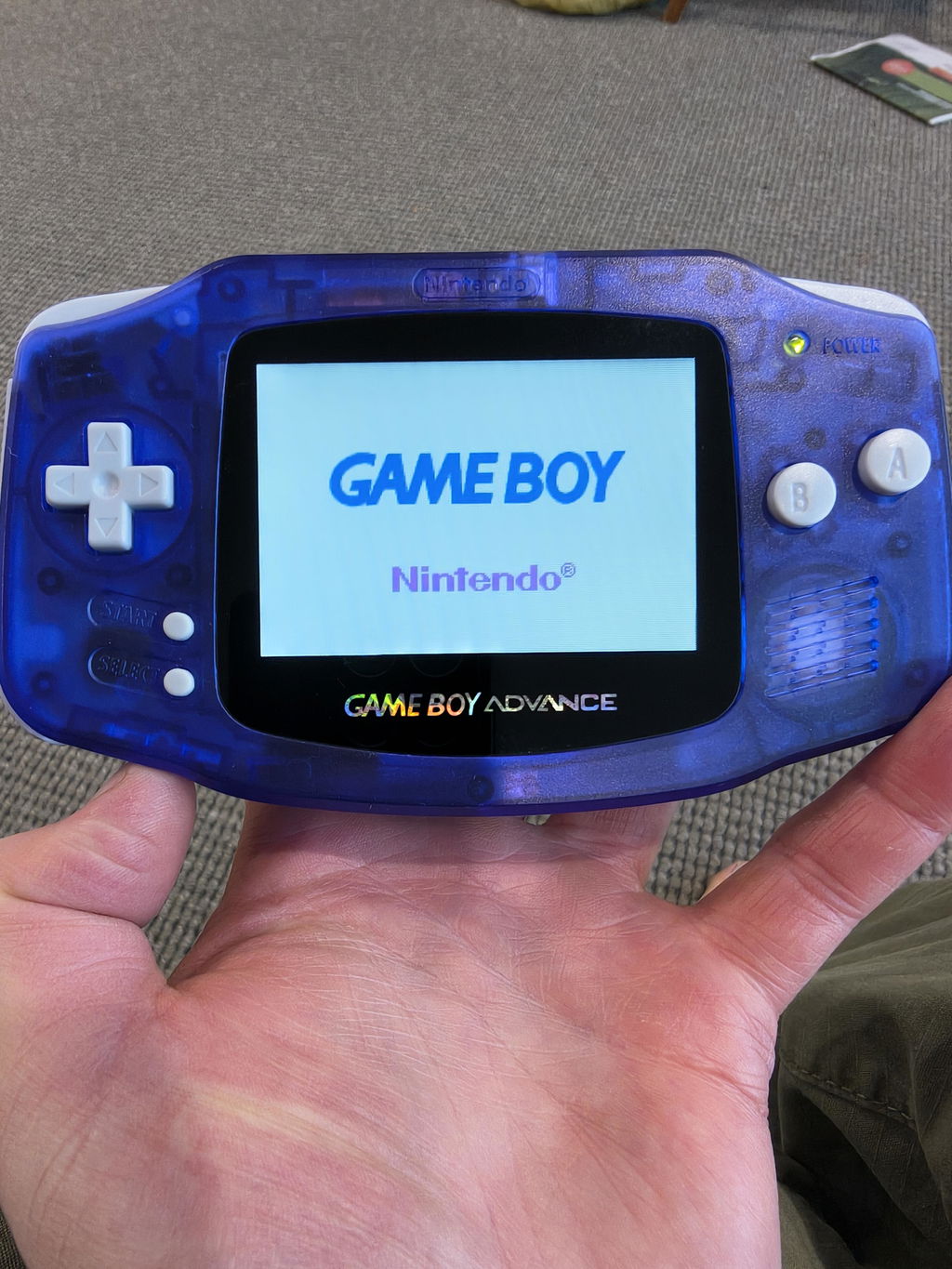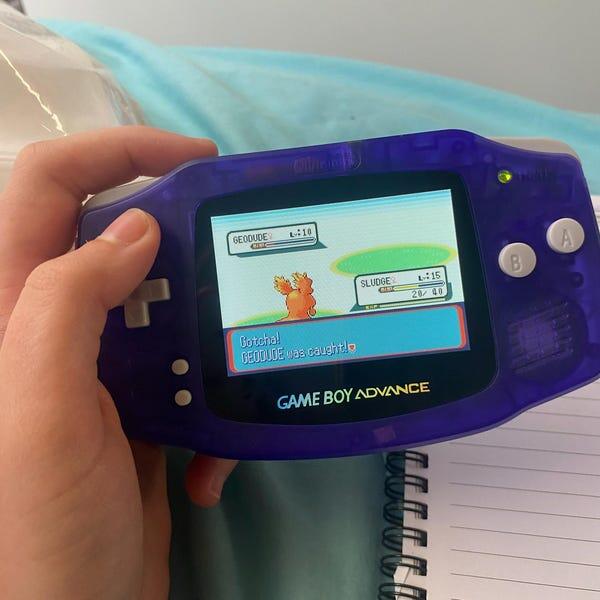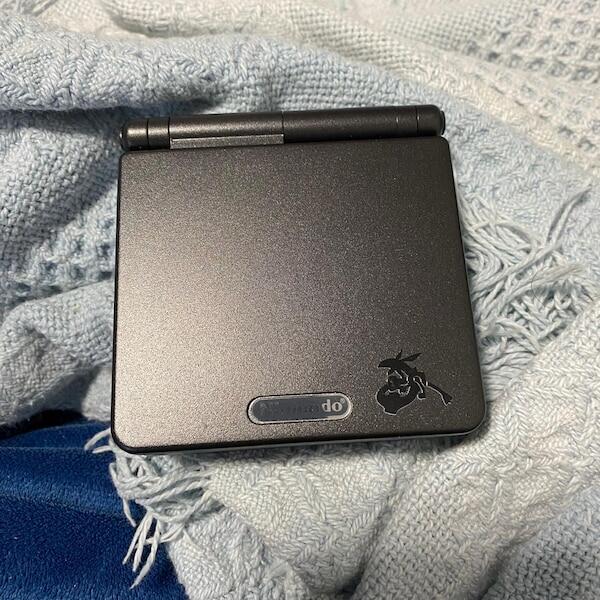

To connect a Game Boy Advance SP to a Game Boy Printer, use a Game Boy/Game Boy Color-compatible link cable and a cartridge with built-in printer support. Instead of recreating supported Pokémon records by hand, print them directly from the game—but do not mistake this for a way to print any Trainer Card screen.
- To connect gameboy advance sp to game boy printer hardware, use a Game Boy/Game Boy Color-compatible cable.
- Pokémon Yellow supports Game Boy Printer output; Pokémon Ruby, Sapphire, Emerald, FireRed and LeafGreen do not.
- The Game Boy Printer prints supported game content, not arbitrary Trainer Card screenshots.
- Retrofit sells refurbished Game Boy Advance SP consoles; check the link port when planning a printer setup.
Why this matters
The cartridge controls printing, not the console's screen. A Game Boy Advance SP can run compatible Game Boy and Game Boy Color cartridges, but it cannot send whatever is on its display to a printer. The game must contain a printer function.
That distinction prevents the main setup mistake: connecting a printer while running a Pokémon game that has no printer support. A Pokémon-themed shell, an IPS display or a charging upgrade does not add that missing software function.
Retrofit sells refurbished and modded Game Boy Advance consoles for Australian enthusiasts and collectors. Retrofit is best for retro gaming enthusiasts who want a refurbished Game Boy Advance console rather than a DIY rebuild. The benefit is a rebuilt handheld; the limitation for this project is unchanged cartridge and accessory compatibility.
For this 2026 setup, establish the output you want before assembling the hardware. A printed Pokédex entry is a supported workflow. A custom-designed Trainer Card requires a different design-and-print workflow, not simply this cable connection.
Before you start
- Console and cartridge: Have a charged Game Boy Advance SP with an accessible, working link port, plus a compatible cartridge. The instructions below use the English-language Pokémon Yellow cartridge as the repeatable printing example.
- Printer and materials: Have a working Game Boy Printer, 6 AA batteries, suitable 38 mm thermal paper and a Game Boy/Game Boy Color-compatible link cable. Nintendo's Game Boy Printer instruction booklet is the hardware reference for battery installation, paper loading and connection precautions.
- The cable gotcha: A standard Game Boy Advance multiplayer cable is not a substitute for the older Game Boy/Game Boy Color cable. Physical fit alone does not establish compatibility, and the printer does not receive power from the SP.
Choose the right cartridge and output
The phrase “Pokémon trainer cards” describes several different things. An in-game Trainer Card, a collectible trading card and a printed Pokédex record are not interchangeable outputs.
| Cartridge or workflow | Game Boy Printer support | Best for | Limitation |
|---|---|---|---|
| Pokémon Yellow | Yes, for supported content such as Pokédex entries | Repeatable Pokémon record printing | Does not act as a general screenshot printer |
| Pokémon Gold and Silver | Yes, for their supported printing features | Printing supported Johto-era records | Use the game's own printer functions, not arbitrary screens |
| Pokémon Ruby, Sapphire, Emerald, FireRed and LeafGreen | No built-in Game Boy Printer support | Playing the GBA Pokémon adventures | Connecting a cable does not enable printing |
| A separately designed Trainer Card | Not through this native cartridge workflow | Custom layouts and personalised cards | Requires a separate image-design and printing process |
Choose Pokémon Yellow for the first connection test. Its Pokédex printing gives you a clear task without relying on an unsupported Trainer Card export. Its disadvantage is that the printed content follows the game's layout, not your own design.
Printer preparation
Start with the printer alone. This separates power and paper faults from communication faults before you introduce the console.
- Switch the Game Boy Printer off and open its battery compartment. Check for leakage or corrosion before inserting batteries; do not power equipment with visibly damaged contacts.
- Install 6 AA batteries, observing the polarity marks. Close the compartment securely rather than leaving the batteries loose during testing.
- Open the paper compartment and load suitable 38 mm thermal paper using the routing shown in the printer's instruction booklet. Keep the roll free to turn and the paper flat through the feed path.
- Close the cover, switch the printer on and press FEED. Confirm that the mechanism advances the paper without bunching or slipping.
- Switch the printer off again before connecting the link cable.
Expected result: The printer powers on and feeds paper smoothly. This confirms basic power and paper movement, but it does not yet prove that the thermal coating or print head produces an image.
Old paper is a separate variable in a 2026 setup. A roll that fits mechanically is not automatically suitable for a useful print. Keep an alternative compatible roll available when diagnosing blank or weak output, rather than repeatedly changing console settings.
Do not add ink or a ribbon. The Game Boy Printer uses thermal paper, so its printing process depends on the paper's heat-sensitive surface.
Cable connection
The Game Boy Advance SP has separate charging and link connections. For printing, you need the link connection—not the charging socket and not a USB-C charging modification.
- Turn the SP and printer off. Save your game before switching the handheld off if you have been playing.
- Insert the Pokémon Yellow cartridge fully into the SP. Keep the cartridge contacts and console slot free of visible debris.
- Connect the Game Boy/Game Boy Color-compatible cable to the SP's EXT.1 link port. Check connector alignment and seat it gently; never force a plug that resists.
- Connect the other compatible end to the Game Boy Printer. Arrange the cable so neither connector carries the weight of the printer or handheld.
- Switch the printer on, then switch the SP on and load your saved game.
Expected result: Pokémon Yellow starts normally while the printer remains powered. There is no computer-style pairing screen, driver installation or device-discovery notification; communication happens when the game sends a print job.
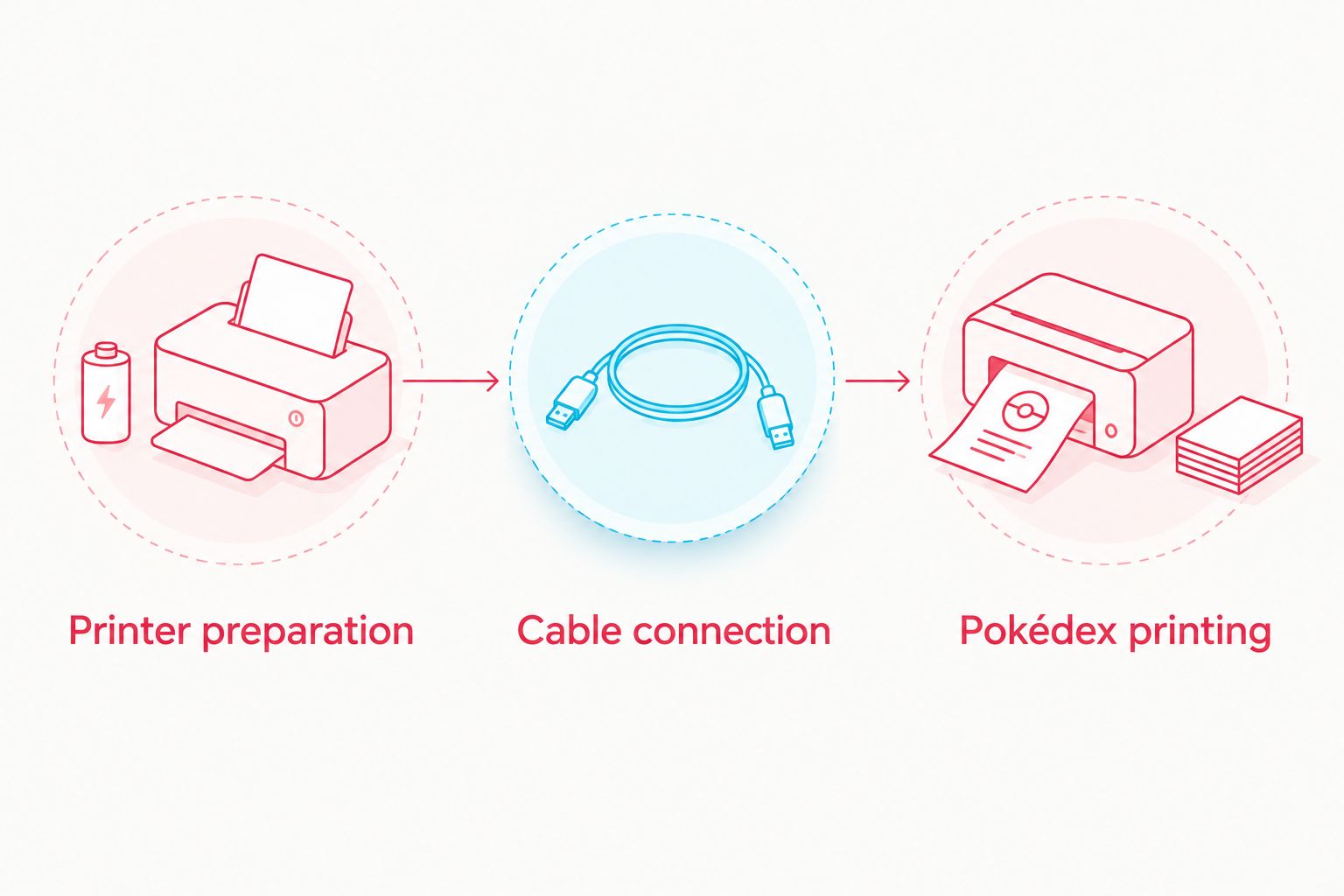
For refurbished hardware, inspect the connection rather than assuming cosmetic condition proves link-port operation. A handheld can load cartridges and display games normally while still having a dirty or damaged accessory port.
Do not use a charging cable as a data connection. USB-C charging, where fitted, supplies power; it does not turn the SP into a USB printer host.
Pokédex printing in Pokémon Yellow
Use a Pokédex entry as your first print job. This provides a supported output and avoids confusing an unavailable printing feature with a faulty cable.
- Press START during normal play and open POKéDEX. Choose a Pokémon registered as caught so its entry provides a useful printing test.
- Select the Pokédex's PRNT command for the chosen entry. This instruction applies to the English-language Pokémon Yellow interface; other games and language versions use their own menus.
- Follow the game's printing prompts and leave the cable connected. Keep both devices powered while the game transfers the job and the printer produces it.
- Wait until printing and paper movement finish before removing the output. Support the printer while separating the paper; do not pull against an actively feeding mechanism.
- Read the result before sending another job. Check that text and graphics appear, then assess darkness and paper alignment separately.
Expected result: You receive a thermal print of the selected supported Pokédex content. The print is not a colour reproduction of the SP display, and it is not a custom Trainer Card.
For a dependable 2026 test, repeat the same entry after changing a cable, batteries or paper. Keeping the content identical makes the effect of that change easier to identify.
If the game remains at a communication prompt or reports a printer problem, stop retrying blindly. Follow the troubleshooting checks below and change only the suspected part before repeating the job.
Second workflow: print Pokémon Yellow's diploma
Pokémon Yellow also supports printing the Pokédex diploma. Best for completion collectors: this produces an in-game achievement record rather than another individual Pokémon entry. The limitation is the completion requirement, so it is unsuitable as your first hardware test.
- Complete the game's required Pokédex collection: 150 caught species, with Mew excluded from that requirement. Merely seeing a Pokémon does not register it as caught.
- Keep the working printer connection from the Pokédex workflow. Save your game before travelling to the diploma check.
- Visit the Game Freak office in Celadon City and speak to the director who checks your Pokédex completion. Follow the diploma dialogue and its printing prompt.
- Leave both devices powered and connected until the print job finishes. Check the finished output before disconnecting anything.
Expected result: The printer produces the supported diploma output after the game recognises the completed Pokédex.
This is an adjacent printing task, not a workaround for unsupported Trainer Cards. The game still decides what it sends. Completing a different achievement or opening a different status screen does not automatically create another printable layout.
Troubleshooting
The game reports a printer connection problem
Check cable type before replacing the printer. A GBA multiplayer cable is the wrong choice for this older printer workflow, even when a connector appears to fit.
Turn both devices off, reseat the correct cable and inspect the sockets for damage or contamination. Retry the same supported Pokédex job with the printer already powered on.
Paper feeds, but the print is blank
Check thermal paper and loading orientation first. The feed mechanism can move paper even when the print surface is unsuitable or facing the wrong direction.
Reload according to the printer manual and test with suitable thermal paper. If blank output persists with known-good paper and batteries, investigate the printer rather than the SP's display settings.
Output is faint or uneven
Separate weak power from paper condition. Replace depleted batteries, verify that the roll moves freely and try another suitable roll before treating the problem as a communication fault.
Do not compensate by repeatedly resending jobs. If the same areas remain missing across different prints, stop and arrange a printer inspection; opening or cleaning the mechanism requires appropriate care.
The game has no print command
Confirm the exact cartridge and feature. The GBA Pokémon titles listed above do not gain Game Boy Printer support through backward-compatible console hardware.
Likewise, an open Trainer Card screen does not prove that the game can print it. Return to the supported Pokémon Yellow Pokédex workflow to test the connection independently of your intended design.
The printer stops or paper jams
Stop sending jobs and switch the equipment off. Open the paper compartment and check for a folded edge, trapped roll or incorrect routing without forcing the mechanism.
Reload cleanly, confirm paper feed and check the batteries before reconnecting. Keep paper-feed diagnosis separate from cartridge and cable diagnosis.
Customise your workflow
For a useful 2026 collection project, decide whether you want original game-generated output or a personalised card. The original printer suits the former; a separate design workflow gives you control over the latter.
- Original records: Keep printing supported Pokédex entries and label their storage sleeves separately. This preserves the game-generated layout without writing on the print itself.
- Custom Trainer Cards: Create your layout outside the cartridge workflow and use an appropriate separate printer. Do not expect the Game Boy Printer connection to capture an arbitrary screen.
- Hardware checks: Record the working cartridge, cable and paper combination. That gives you a reference setup when testing another handheld or printer.
Retrofit's refurbished Game Boy Advance SP category suits enthusiasts seeking rebuilt handheld hardware, but refurbishment does not remove the need to verify an accessory port. Start with the secondhand Game Boy Advance SP testing guide when checking a console for this project.
FAQ
Can I connect a Game Boy Advance SP to a Game Boy Printer?
Yes. Use a Game Boy/Game Boy Color-compatible link cable, power the printer separately and run a cartridge with built-in Game Boy Printer support.
Can the Game Boy Printer print any Pokémon Trainer Card screen?
No. The Game Boy Printer is not a general screenshot printer; the cartridge must provide a supported print function for the content you want.
Which cable connects a GBA SP to the Game Boy Printer?
Use a Game Boy/Game Boy Color-compatible link cable with the appropriate connectors. A standard Game Boy Advance multiplayer cable is not a substitute.
Can Pokémon Emerald or FireRed print through a Game Boy Printer?
No. Pokémon Emerald and FireRed do not include built-in Game Boy Printer support, and connecting them through an SP does not add it.
Does the Game Boy Printer need its own batteries?
Yes. The Game Boy Printer uses 6 AA batteries and does not receive operating power from the SP through the link cable.
Will an IPS screen or USB-C charging upgrade improve the print?
No. A display upgrade changes the handheld's viewing experience, while a charging upgrade changes its power connection; neither adds cartridge printing features or changes the printer's thermal output.
Why does my Game Boy Printer feed paper without printing an image?
Check the thermal paper, its orientation and the printer's power first. Paper movement alone does not confirm that the paper coating and print head are producing an image.
One last thing
A brighter handheld screen does not make a better thermal print. The cartridge sends printer data separately from the display, so spend your troubleshooting effort on supported software, the correct cable, printer power and suitable paper.
For a 2026 setup, prove the connection with a repeatable Pokédex entry before planning a larger collection. One successful reference print is more useful than changing several accessories without knowing which one failed.